
Coding
Struggling with messy text data in Excel? These 10 essential text functions will transform raw information into clean, professional formats with minimal effort. Learn practical examples that solve real-world data challenges every analyst faces.
Concatenate Function for Combining Text Fields

Tired of manually typing combined names or product descriptions in Excel? The CONCATENATE function merges text from multiple cells into one with just a simple formula—no copy-pasting required.
Use it to combine first and last names (e.g., =CONCATENATE(A2," ",B2)) or merge product details like SKUs and descriptions. It works in Excel 2016 and later, including Office 365, and supports up to 255 characters per result. For dynamic separators (like commas), try TEXTJOIN instead.
Perfect for HR databases, e-commerce inventory lists, or any scenario where you need clean, formatted text from scattered columns. ⚡
Text to Columns for Splitting Delimited Data

Tired of staring at jumbled data where names, addresses, or CSV imports appear as single strings? The Text to Columns tool instantly splits them into organized columns with just a few clicks—no formulas required.
Access it via Data > Text to Columns, then choose your delimiter (comma, tab, or custom character). It handles everything from comma-separated values (CSV) to semicolon-delimited exports, even converting dates or fixed-width text into usable columns. For example, transform "John Doe,123 Main St, Springfield" into separate Name, Address, and City fields in seconds.
Perfect for data analysts, small business owners processing invoices, or anyone cleaning up messy imports. Try it on your next dataset and watch raw text transform into structured data. ✨
Proper Function for Automatic Text Capitalization

Tired of manually fixing capitalization in customer names or report titles? The PROPER function in Excel automatically capitalizes the first letter of each word while converting the rest to lowercase—no more tedious editing for every entry.
Simply type =PROPER(A1) where A1 contains your text (e.g., "john doe" becomes "John Doe"). Works seamlessly with Excel 2016, 2021, and Office 365, and handles titles like "microsoft corp" → "Microsoft Corp" without extra steps. Drag the formula down to apply it across entire columns instantly.
Perfect for customer databases, invoices, or formal reports where consistent formatting matters. Save hours of manual corrections and ensure professional presentation every time. ✨
Left Right and Mid Functions for Text Extraction
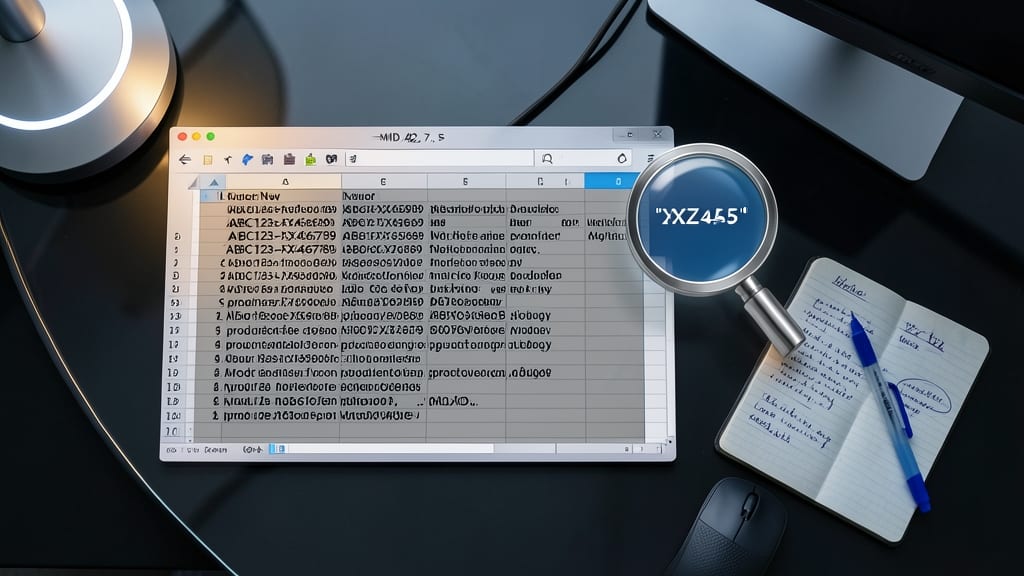
When your data contains long strings of text but you only need a specific segment—like product codes or reference numbers—Excel’s LEFT, RIGHT, and MID functions become your precision tools. These functions let you extract exact portions of text based on character position, making them perfect for cleaning up messy datasets or isolating key details.
Use LEFT to grab characters from the start (e.g., =LEFT(A1,5) extracts the first 5 characters of cell A1), RIGHT for the end (e.g., =RIGHT(A1,4) pulls the last 4 characters), and MID for any middle segment (e.g., =MID(A1,7,3) extracts 3 characters starting at position 7). These functions work seamlessly across Excel versions, from Excel 2016 to Office 365, and handle dynamic data ranges effortlessly.
Ideal for inventory managers, developers parsing logs, or anyone dealing with structured data like serial numbers or IDs, these functions save hours of manual copying. Combine them with other text tools for even more powerful data extraction. ✨
Trim Function for Removing Extra Spaces

Tired of wasting hours manually cleaning up imported data with random spaces between words or trailing spaces at the end of strings? The TRIM function in Excel is your one-click solution for instantly tidying up messy text—no manual editing required.
This function removes all extra spaces from text, including those sneaky spaces between words or at the beginning/end of strings. Simply type =TRIM(A1) where A1 contains your messy text, and watch Excel instantly clean it up. It’s especially useful for CSV imports, copied-and-pasted data, or user-generated content where formatting gets corrupted.
Perfect for data analysts, marketers, or anyone dealing with imported datasets—just apply TRIM to a column, and your data will look polished in seconds. ✨
Substitute Function for Text Replacements

Need to replace outdated abbreviations, typos, or inconsistent formatting across hundreds of cells? The SUBSTITUTE function lets you update text automatically—no manual edits required. Simply specify the old text, new replacement, and cell reference (e.g., =SUBSTITUTE(A1,"old","new")), and Excel handles the rest.
This function supports wildcards (like asterisks for partial matches) and even replaces multiple instances in a single cell. For example, turn "Inc." into "Corporation" across an entire column in seconds. It works in Excel 2016 and later, including Office 365, and handles up to 32,767 characters per cell—ideal for large datasets.
Perfect for data migration projects, compliance updates, or cleaning up user-generated content where consistency matters. Save hours of tedious editing and maintain data integrity effortlessly. 🌟
Find Function for Text Position Locating

When you need to pinpoint where specific text appears within a cell—like extracting email domains or validating phone number formats—the FIND function becomes your secret weapon. Unlike other text functions that modify or extract data, FIND reveals the exact position of a substring, giving you the power to analyze and manipulate text with surgical precision.
Use FIND("text", cellreference, [startnum]) to return the starting position of a substring, where start_num (optional) lets you search from a specific spot. For example, =FIND("@", A2) locates the position of the "@" symbol in an email address, while =FIND(" ", A2, 2) finds the second space in a string. This is especially useful for parsing complex data like URLs, product codes, or formatted addresses where you need to isolate specific segments.
Perfect for data validation tasks, this function shines when you need to verify formats or extract components from structured text—ideal for analysts, developers, or anyone working with semi-structured datasets. ⚡
Len Function for Character Counting

Ever wasted hours manually checking if ZIP codes or product SKUs meet format requirements? The LEN function solves this instantly by counting characters in any text string—perfect for enforcing data consistency without writing VBA.
With just =LEN(A1), you can validate that ZIP codes are exactly 5 digits (or 10 with hyphens) or ensure product SKUs match your standard 8-character format. Combine it with IF statements to flag errors automatically, like highlighting cells where LEN(A1) ≠ 5. Works seamlessly across Excel 2016, 2021, and Office 365.
Ideal for inventory managers, data analysts, or anyone importing structured data—save time by letting Excel do the heavy lifting. ✨
Upper and Lower Functions for Case Conversion

Tired of inconsistent text case ruining your reports or causing errors in case-sensitive operations? The UPPER and LOWER functions in Excel are your secret weapons for standardization.
Use UPPER to convert all text to uppercase (e.g., =UPPER(A1) turns "john doe" into "JOHN DOE"), perfect for SQL queries or database imports. The LOWER function does the opposite, converting text to lowercase (e.g., =LOWER(A1) turns "JOHN DOE" into "john doe"), ideal for email validation or search-friendly URLs. Both work with entire columns via Fill Down, saving you hours of manual editing.
These functions are a must for data analysts preparing reports or developers ensuring case consistency in APIs. Try them today for flawless text formatting! ✨
Clean Function for Removing Non-Printing Characters

Ever pasted data into Excel only to see strange symbols or formatting errors that won’t go away? The CLEAN function is your secret weapon against non-printing characters like carriage returns, line breaks, or hidden formatting codes that sneak into your data from imports or copied text.
This function scans your text and removes all non-printable ASCII characters (codes 0-31 and 127), leaving only clean, visible text. For example, if you copy text from a website or PDF and end up with invisible characters causing display issues, =CLEAN(A1) instantly purifies it. It’s especially useful when working with CSV imports or web-scraped data that often contains hidden formatting.
Perfect for data analysts cleaning up messy datasets or anyone dealing with imported files that refuse to display correctly. Just one function call keeps your text pristine and ready for analysis. ✨