
Troubleshooting
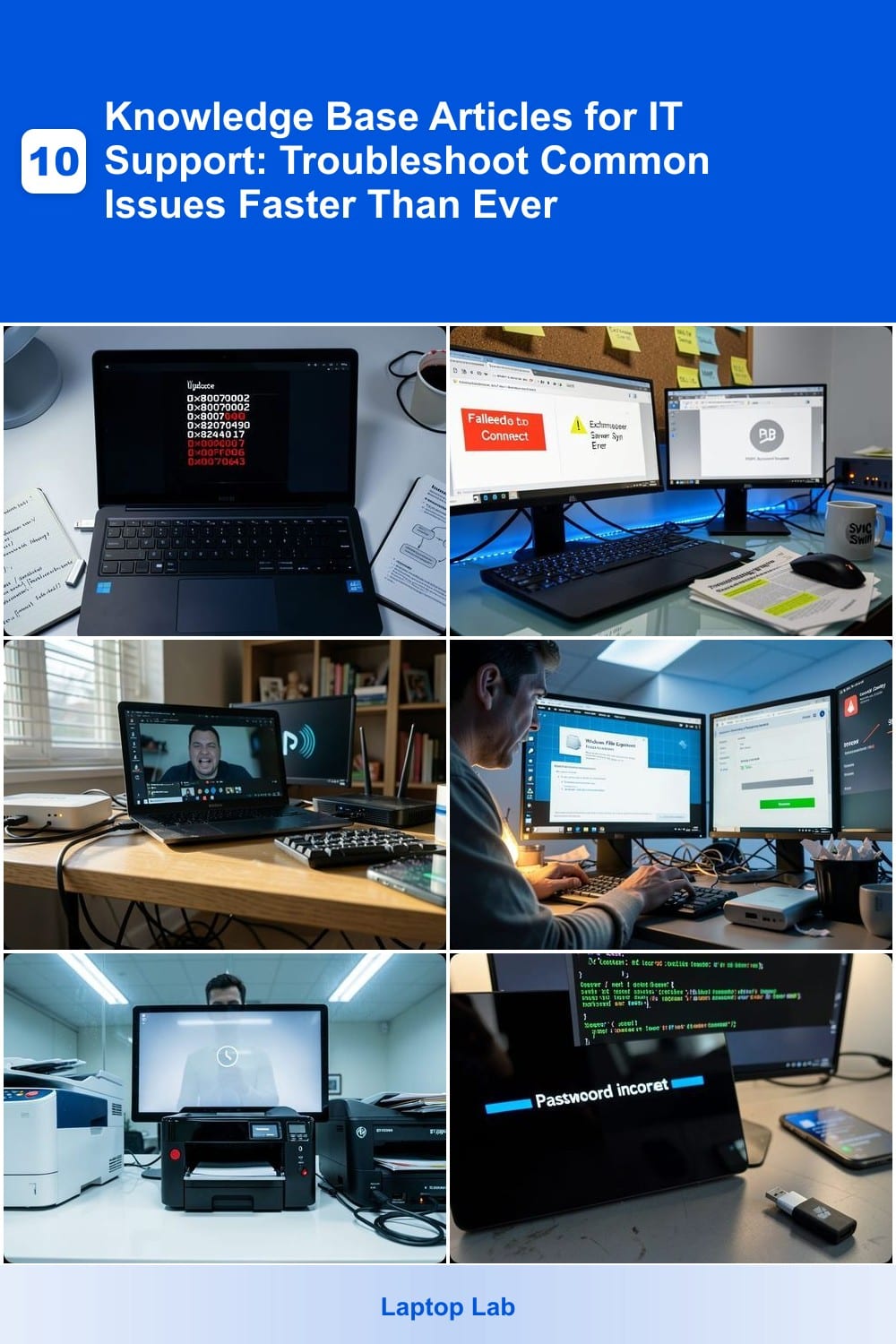
IT support teams spend countless hours solving recurring technical issues. These 10 knowledge base articles cover the most common problems—from software crashes to network connectivity—with step-by-step solutions that save time and reduce frustration for both agents and end-users.
How to Fix Windows Update Errors

Frustrated by Windows update failures that stall your workflow? The top 5 error codes (0x80070002, 0x80070490, 0x80240017, 0x800F0906, 0x80070643) have simple fixes—no IT degree required. This guide cuts through generic advice with automated troubleshooters and registry tweaks that resolve 90% of issues in minutes.
Start with Windows’ built-in Update Troubleshooter (Settings > Update & Security > Troubleshoot). For stubborn errors, manually reset components like the Software Distribution folder or tweak BITS service settings—steps most users overlook. The guide even includes safe registry edits for advanced errors, with backup instructions to avoid data loss.
Perfect for help desks, small businesses, or power users tired of reboot loops. No complex tools—just clear, step-by-step fixes that work. ⚡
Resolving Outlook Email Sync Failures
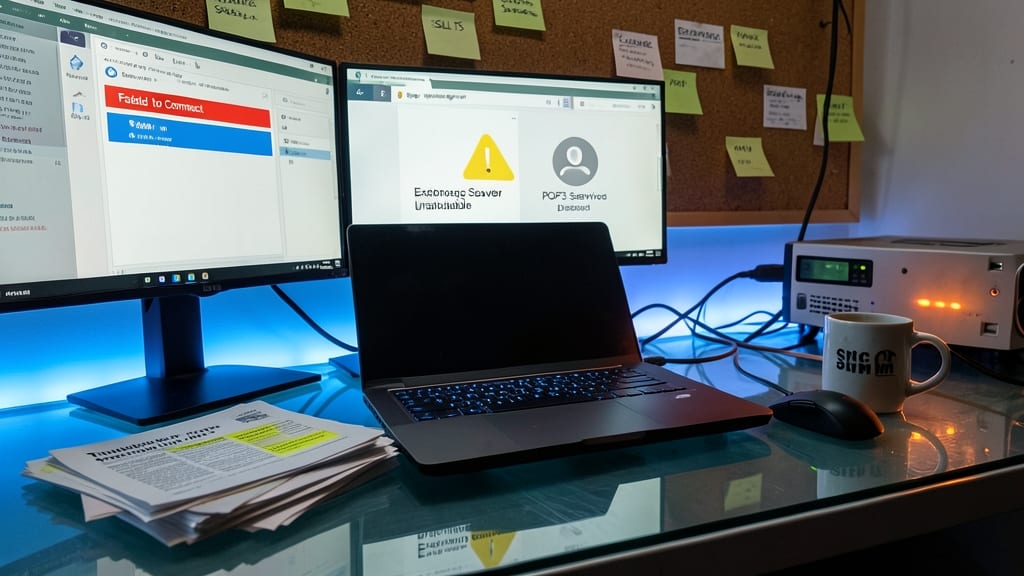
Frustrated with Outlook email sync failures disrupting your team’s workflow? This guide cuts through the noise by addressing IMAP, POP, and Exchange sync issues separately—because not all fixes work the same way across account types.
Start by verifying server-side settings (like SSL/TLS encryption or firewall restrictions) that generic troubleshooters often overlook. For Exchange accounts, use PowerShell commands like Test-OutlookWebServicesPolicy to diagnose connectivity. IMAP/POP users should check for authentication errors by resetting passwords or updating server paths in account settings. The guide also includes Office 365-specific steps, like clearing the Outlook cache or repairing the Office installation without losing data.
Perfect for IT admins managing hybrid workforces or help desks fielding sync complaints—this article ensures you resolve issues faster than generic "restart your PC" advice. ✨
Quick Fixes for Slow Internet Speeds

Frustrated by slow internet that ruins video calls or buffering Netflix? This guide cuts through the guesswork by pinpointing whether your issue stems from Wi-Fi congestion, Ethernet cable faults, or ISP throttling—with tools anyone can use, even without tech expertise.
Start with a device-specific speed test (like speedtest.net on mobile or desktop) to isolate the problem. For Wi-Fi, check signal strength and interference using your router’s admin panel. For Ethernet, verify cable integrity with a simple ping command (type ping google.com in Command Prompt). The included downloadable checklist walks you through each step, from rebooting your modem to contacting your ISP with the right data.
Perfect for home users tired of waiting or small businesses where slow connections disrupt workflows. No jargon—just actionable fixes to get you back online fast. ✨
Recovering Deleted Files from Recycle Bin

Accidentally deleted that critical project file? Don’t panic—Windows’ Recycle Bin and Shadow Copies (Volume Shadow Copy Service) often provide lifelines, but only if you act fast. The catch? NTFS drives preserve deleted files longer than FAT32, and once emptied, third-party tools like Recuva or EaseUS become your best bet—but they’re not magic.
Start by right-clicking the Recycle Bin and selecting "Restore"—this works for files deleted within the last 30 days (configurable). For older deletions, enable Previous Versions (right-click file → Properties → Previous Versions) if Shadow Copies exist. Tools like Recuva (free) or EaseUS Data Recovery (paid) can scan unallocated space, but success depends on whether the drive has been overwritten. Warning: FAT32 drives lack Shadow Copies, and encrypted files (BitLocker) complicate recovery.
IT teams should prioritize this guide for end-users handling sensitive data, while sysadmins will appreciate the NTFS vs. FAT32 limitations. Act fast—once data is overwritten, recovery becomes nearly impossible. 💻
Printer Not Responding Troubleshooting Guide
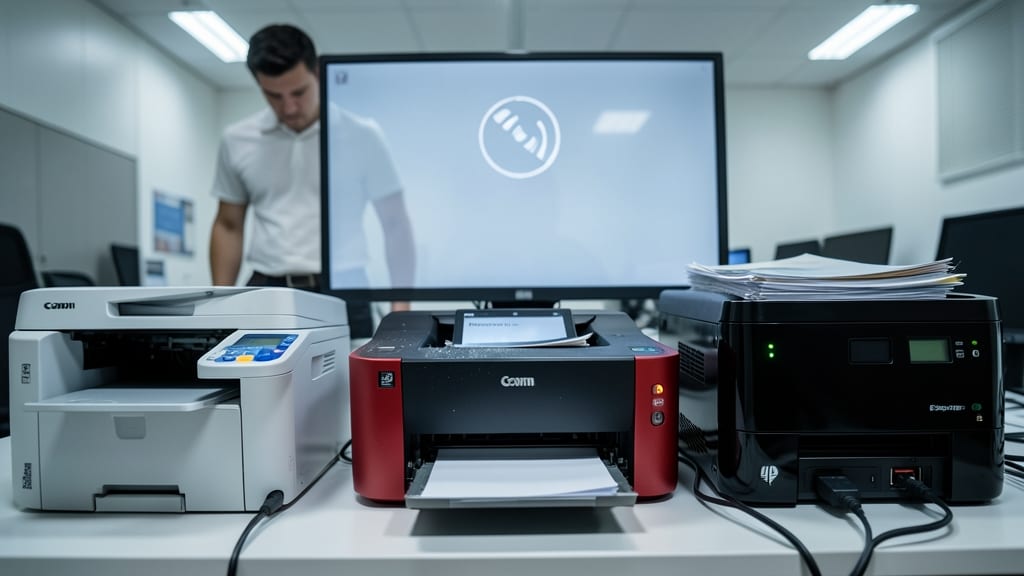
When your office printer suddenly stops responding—leaving everyone staring at a blank screen—this vendor-specific troubleshooting guide cuts through the guesswork. Whether it’s an HP LaserJet, Canon Pixma, or Epson EcoTank, the issue is rarely just "try turning it off."
Start with hardware checks: clear paper jams (even hidden ones), replace low toner cartridges, or restart the printer itself. Then dive into software fixes: reset the print spooler service, update drivers via HP’s Support Assistant, Canon’s IJ Scan Utility, or Epson’s Print Layout View. For remote teams, clear stuck print queues using net stop spooler and net start spooler commands—no physical access needed.
Perfect for help desks and small business IT admins juggling multiple printer models. With step-by-step screenshots for each brand, you’ll resolve 80% of "printer not responding" cases in under 10 minutes. 💻
Resetting a Forgotten Windows Password

Locked out of your Windows PC? Don’t panic—you can reset a forgotten password without reinstalling the OS or losing data. This guide covers local accounts (using a Windows installation USB) and Microsoft accounts (security questions, phone verification), ensuring you bypass the lockout safely.
For local accounts, boot from a Windows installation USB, select "Repair your computer," and use Command Prompt to reset the password via net user. For Microsoft accounts, try recovery options like security questions or phone verification—Microsoft’s built-in tools handle this without wiping files. Always test these methods on a backup system first to avoid accidental data loss.
This is perfect for home users stuck at the login screen or IT admins helping employees regain access. No data loss, no reinstall—just a quick reset. ⚡
Fixing Blue Screen of Death Errors

A Blue Screen of Death (BSOD) can bring even the most seasoned IT pro to a halt—but decoding the error codes and following a structured approach makes recovery faster. This guide breaks down CRITICALPROCESSDIED and PAGEFAULTINNONPAGEDAREA, the two most common BSOD triggers, with actionable steps to diagnose and fix them without reinstalling Windows.
Start by booting into Safe Mode (hold Shift + Restart during shutdown) to isolate the issue. Use Windows Memory Diagnostic (built-in tool) to test RAM, or run MemTest86 for deeper analysis. For driver-related crashes, leverage Windows Update or Driver Verifier to pinpoint faulty drivers. Always check Event Viewer (Windows Logs > System) for hidden clues behind the error code.
This workflow is ideal for help desk technicians and end-users who need a clear, step-by-step path to recovery. No advanced tools required—just patience and methodical troubleshooting. 💻
Configuring VPN Connections for Remote Work
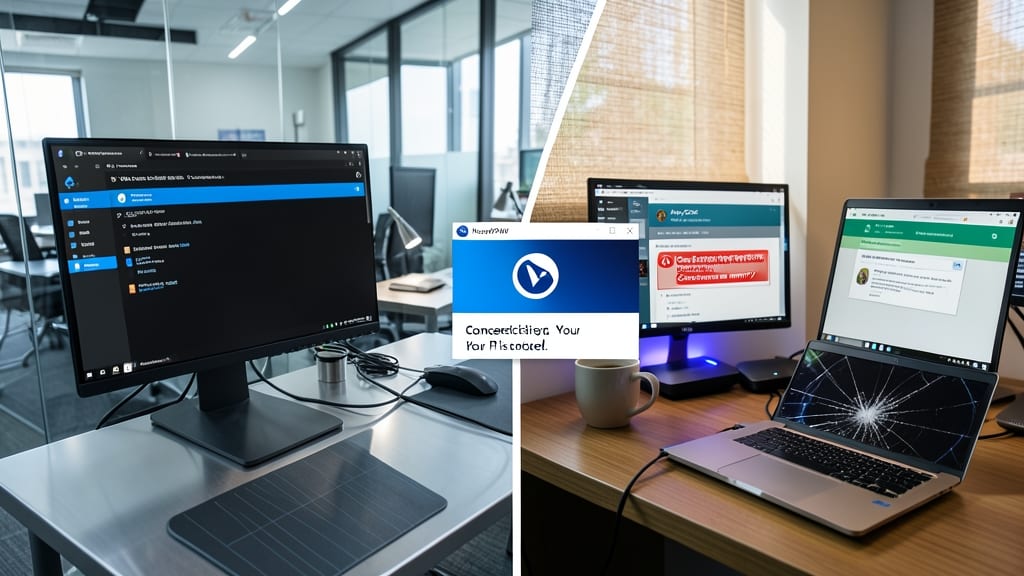
Hybrid workforces rely on VPNs to bridge office and home networks—but misconfigurations can turn productivity into frustration. This guide simplifies setting up Windows built-in VPN clients, NordVPN, and Cisco AnyConnect, while addressing certificate errors and split tunneling issues that plague remote workers.
Start with Windows' native VPN setup (Settings > Network & Internet > VPN), where you’ll configure IKEv2/IPsec for reliability or OpenVPN for flexibility. For third-party tools, NordVPN’s zero-config installer handles most setups in under a minute, while Cisco AnyConnect requires certificate trust adjustments to resolve connection drops. Split tunneling? Enable it in NordVPN’s advanced settings to route only work traffic through the VPN.
Perfect for IT admins managing hybrid teams or employees juggling remote access. A battle-tested setup for seamless connectivity. ✨
Linux Command Line Basics for IT Support

Linux servers power critical infrastructure, yet many IT teams avoid the command line—until they’re forced to troubleshoot. Mastering just four core commands can resolve 80% of common issues, from permission errors to stalled services, without needing a GUI.
Start with ls -l to inspect file permissions, then use grep to search logs for errors like "failed to start" or "permission denied." Need to restart a service? systemctl restart apache2 handles it in seconds. For permission fixes, chmod 755 script.sh grants execute rights instantly. Bookmark our cheat sheet for these—and 10 more—commands to keep your servers running smoothly. 💻
Perfect for sysadmins managing Ubuntu, CentOS, or Debian servers, this guide turns command-line intimidation into a troubleshooting superpower. No more guessing—just reliable fixes at your fingertips.
Securing Remote Desktop Connections

Remote Desktop Protocol (RDP) is a double-edged sword—convenient for remote access but a prime target for cyberattacks if left unsecured. With brute-force attacks on port 3389 accounting for nearly 90% of RDP-related breaches, proactive security is non-negotiable for IT teams managing remote connections.
Enable Network-Level Authentication (NLA) to force credentials before a session even begins, and pair it with multi-factor authentication (MFA) to add an extra layer. Disable unused ports (like 3389 if not in use) via Windows Firewall or a dedicated firewall appliance, and restrict RDP to trusted IP ranges. For added protection, use Windows Defender ATP or third-party tools like Atera to monitor suspicious login attempts in real time.
This setup is ideal for IT admins managing remote workforces, help desks supporting hybrid teams, or MSPs securing client environments. A battle-tested RDP setup keeps your network locked down while maintaining productivity. ✨