
Hardware
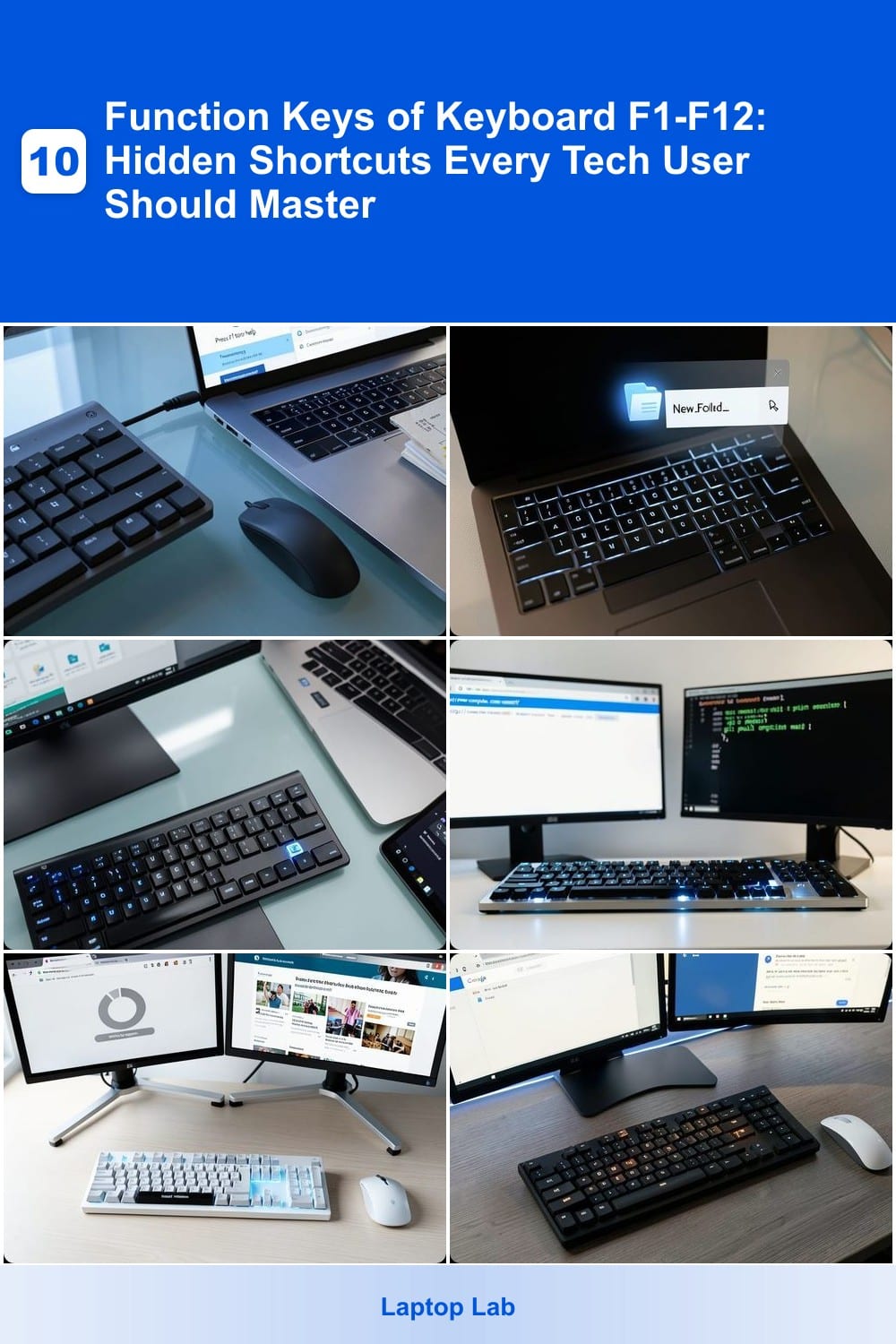
Mastering F1-F12 function keys can transform your productivity—these hidden shortcuts save time across Windows, Mac, and Linux systems. From troubleshooting to media control, these 10 keys unlock features most users overlook.
F1 Key: Instant Help System Access
Stuck on a software glitch or hunting for answers without leaving your desk? The F1 key is your instant help button—press it once to summon built-in system documentation in Windows or Linux, or access Mac’s system documentation without searching online. No more tab-switching or typing vague queries into search engines.
This universal shortcut works across nearly all applications, from Microsoft Office to web browsers, pulling up context-specific help menus tailored to your current task. For example, need help formatting a table in Excel? Just press F1 while in the app for direct guidance. It’s especially handy when troubleshooting errors or learning new software features on the fly.
Perfect for beginners navigating unfamiliar tools or power users who prefer self-service solutions. It’s the fastest way to get answers when you’re already in the middle of a workflow. ⚡
F2 Key: Rename Files and Folders
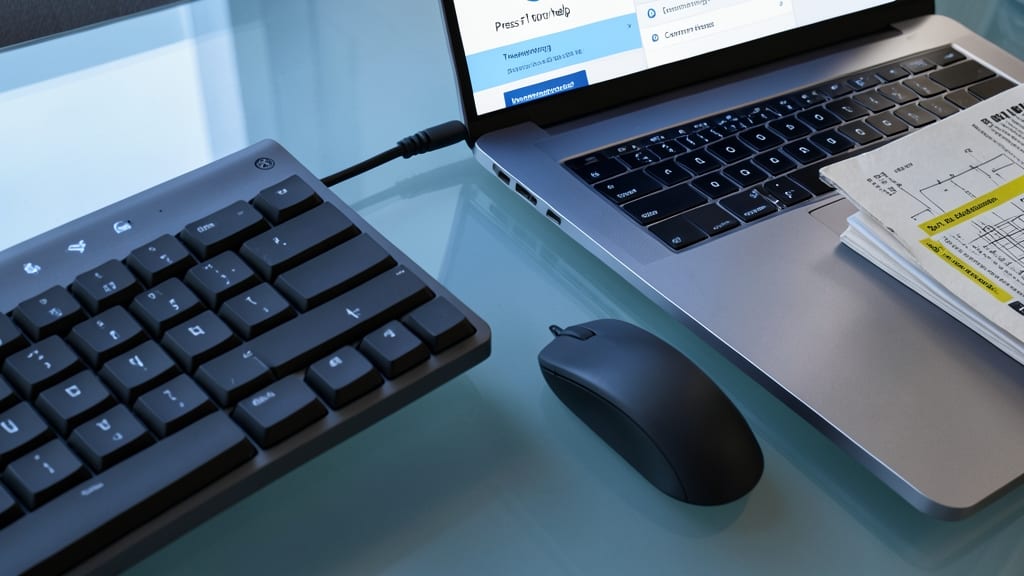
Tired of right-clicking, selecting "Rename," and typing? The F2 key is your instant file-editing shortcut—universal across Windows, Linux, and even some Mac file managers. With one press, you skip the menu entirely and jump straight into renaming files or folders, cutting your workflow time by half.
Works in Windows Explorer, Linux file managers (like Nautilus or Dolphin), and macOS Finder (with third-party tweaks). Just select a file, hit F2, type your new name, and press Enter—no extra clicks. It’s especially useful when organizing media libraries, project folders, or batch-renaming files during cleanup sessions.
Perfect for creatives, developers, or anyone drowning in files—this is the ultimate mouse-free productivity hack for quick organization. ✨
F3 Key: Search Files or Open Run Dialog
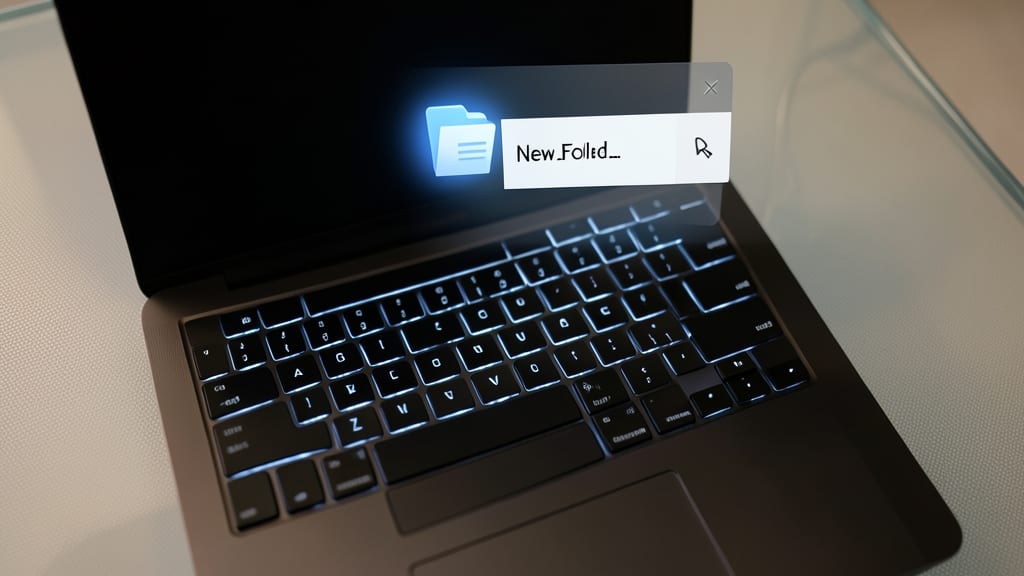
Forget digging through folders—F3 is your instant file-finding superpower. On Windows, it opens File Explorer’s search bar, letting you type keywords to locate documents, apps, or media in seconds. Meanwhile, Mac and Linux users get a terminal or system search shortcut, perfect for power users who live in the command line.
This shortcut shines when you’re in a hurry: need that monthly report but can’t remember the folder? Just press F3, type "report," and boom—results appear. It also works as a Run dialog launcher on some systems, letting you execute commands or open programs without navigating menus. The best part? It’s zero-config—no setup required.
Developers, sysadmins, and anyone drowning in files will love this one. It’s the ultimate mouse-free recovery tool for when your workflow depends on speed. ⚡
F4 Key: Address Bar or Repeat Last Action
Tired of manually typing URLs or retyping commands? The F4 key is your secret weapon for power users—especially if you spend hours browsing or scripting.
On Windows, press F4 to instantly highlight the URL in browsers like Chrome or Edge, or repeat your last command in Command Prompt (no retyping!). On Mac, it opens the Address Bar in Safari or Finder search, streamlining navigation. This dual-purpose shortcut cuts down on repetitive tasks, whether you're debugging scripts or jumping between tabs.
Perfect for developers, sysadmins, or anyone glued to the keyboard—master this one, and you'll wonder how you ever lived without it. ⚡
F5 Key: Refresh Web Pages Instantly
Tired of waiting for slow-loading pages or stuck updates? The F5 key is your instant refresh button—universal across browsers, email clients, and file managers—but its power extends far beyond basic page reloads.
Pressing F5 forces a full page refresh in Chrome, Firefox, or Edge, bypassing cached versions. It also triggers live updates in Gmail, Outlook, or Slack, ensuring you see the latest messages or notifications without manual clicks. Developers love it for debugging live sites, while researchers use it to pull fresh data from dynamic dashboards. Some apps (like Spotify) even use F5 to skip tracks—no need to hunt for controls.
If you’re juggling multiple tabs, testing web apps, or monitoring real-time systems, F5 cuts wasted seconds. It’s the ultimate shortcut for anyone who hates waiting. ⚡
F6 Key: Cycle Through Screen Elements
Tired of reaching for your mouse every time you need to switch between browser address bars and search boxes? The F6 key is your new best friend—it cycles through focusable elements on-screen, making navigation a breeze.
On Windows, pressing F6 jumps between the address bar, search box, and other key fields in browsers or apps like File Explorer. Meanwhile, Mac and Linux users can cycle through menu items (like the top menu bar) without lifting a finger. This is especially useful for developers debugging code or power users managing multiple browser tabs. The best part? It works across nearly all applications, from email clients to IDEs.
If you spend hours typing and want to minimize mouse dependency, F6 is a game-changer for keyboard-centric workflows. Try it in your browser now—you’ll wonder how you ever lived without it! 💻
F7 Key: Spell Check in Word Processors
Forget hunting for the spell check button in Microsoft Word, LibreOffice, or Google Docs—press F7 to instantly trigger a full document review. This underrated shortcut scans your text for spelling, grammar, and style errors in seconds, saving you from manual toolbar clicks or context menu diving.
Works seamlessly across Windows, Mac, and Linux for all major word processors, including Microsoft Word (with advanced grammar tools), LibreOffice Writer (open-source alternative), and Google Docs (via browser shortcuts). The real-time feedback highlights errors with squiggly underlines, while the detailed suggestions panel helps refine your writing without leaving your keyboard.
Perfect for writers, students, or professionals crafting reports, essays, or proposals—this shortcut turns your keyboard into a writing powerhouse. ⚡
F8 Key: Boot Menu or Safe Mode Entry

When your system acts up—whether it's a blue screen, stubborn driver issues, or a failed update—F8 is your emergency access pass. Unlike other function keys that handle daily tasks, this one unlocks low-level system controls across all major operating systems, making it indispensable for IT professionals, power users, and anyone who’s ever needed to recover a crashed machine.
On Windows, pressing F8 repeatedly during startup (before the logo appears) reveals the Advanced Boot Options menu, where you can launch Safe Mode, enable network troubleshooting, or roll back drivers. Linux users get the GRUB menu, letting you select kernels or recovery modes, while Mac users trigger Safe Boot to diagnose hardware conflicts. The key’s behavior varies slightly by OS, but its core purpose—system recovery—remains universal.
This is the go-to shortcut for IT admins fixing workstations, gamers troubleshooting GPU crashes, or casual users stuck in a boot loop. No mouse? No problem—just press F8 and regain control. 💻
F11 Key: Toggle Full-Screen Mode
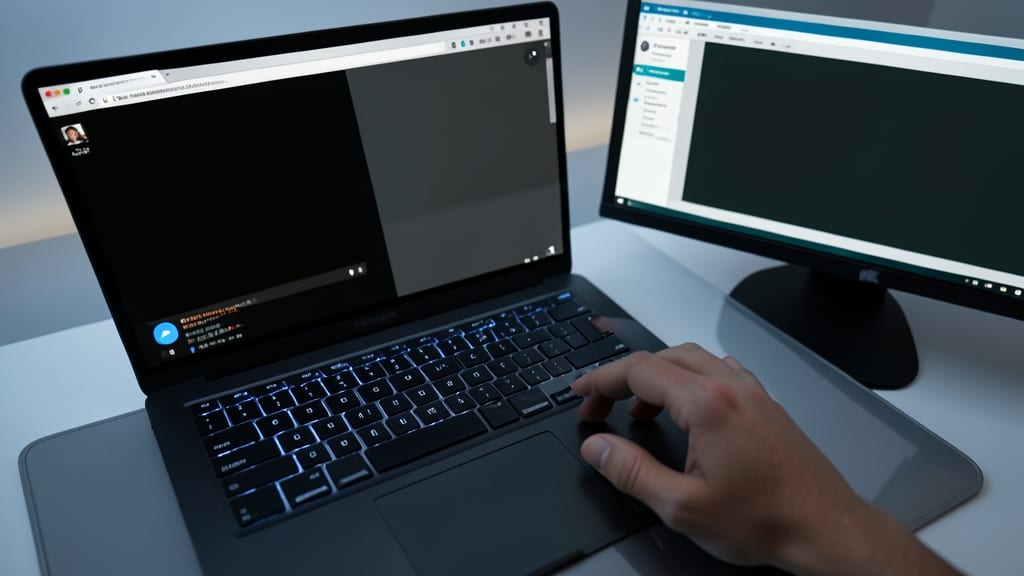
Need to expand your screen to full glory without reaching for the mouse? The F11 key is your universal toggle for full-screen mode across browsers, videos, and presentations—no alt-tabbing required.
Works seamlessly in Chrome, Firefox, Edge, YouTube, Netflix, and even PowerPoint—just press it once to enter full-screen, press again to exit. This shortcut eliminates distractions during research, streaming marathons, or public speaking by maximizing your display in a single keystroke. No more fumbling with window controls or remembering different shortcuts for each app.
Perfect for remote workers, students, or presenters who juggle multiple tasks. It’s the ultimate zero-config productivity booster for anyone tired of mouse clicks. ✨
F12 Key: Developer Tools or Save As Dialog

Need to debug a webpage or save a file with a new name? The F12 key does both—but differently on Windows and Mac, making it a powerhouse for developers and power users alike.
On Windows, pressing F12 instantly opens Developer Tools in Chrome, Firefox, Edge, or Safari—no need to hunt through menus. Meanwhile, Mac users get the Save As dialog in most applications, perfect for quick file exports. This dual-purpose shortcut saves clicks while keeping workflows fluid.
Web developers will love the instant access to DevTools, while creatives or office workers benefit from the Save As shortcut. It’s the one key that bridges coding and everyday productivity seamlessly. ✨