
Software
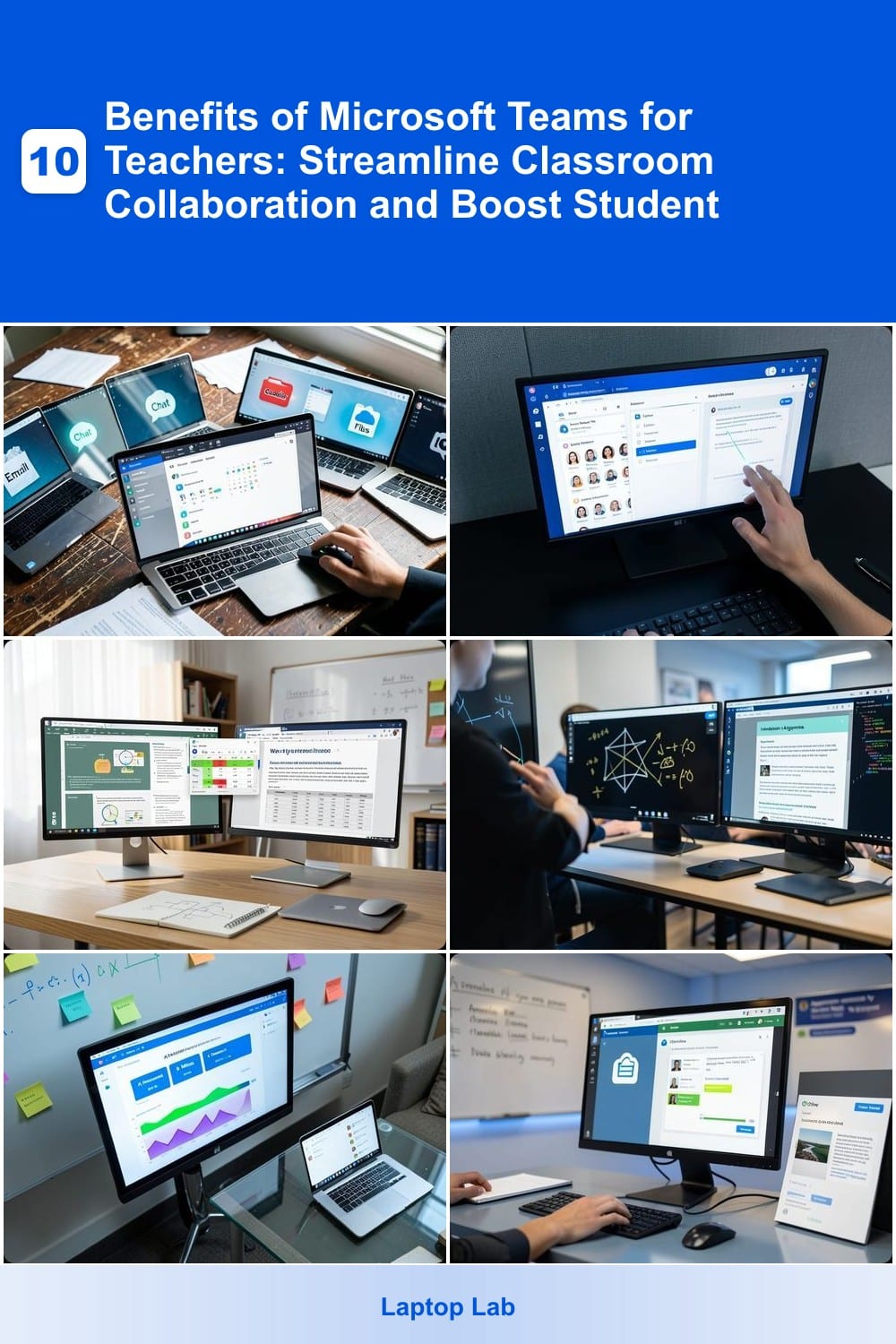
Microsoft Teams is transforming modern classrooms by offering powerful tools that enhance communication, organization, and student engagement. For teachers juggling lesson plans, parent communication, and digital learning tools, Teams provides a centralized hub that saves time and improves educational outcomes.
Seamless classroom communication hub
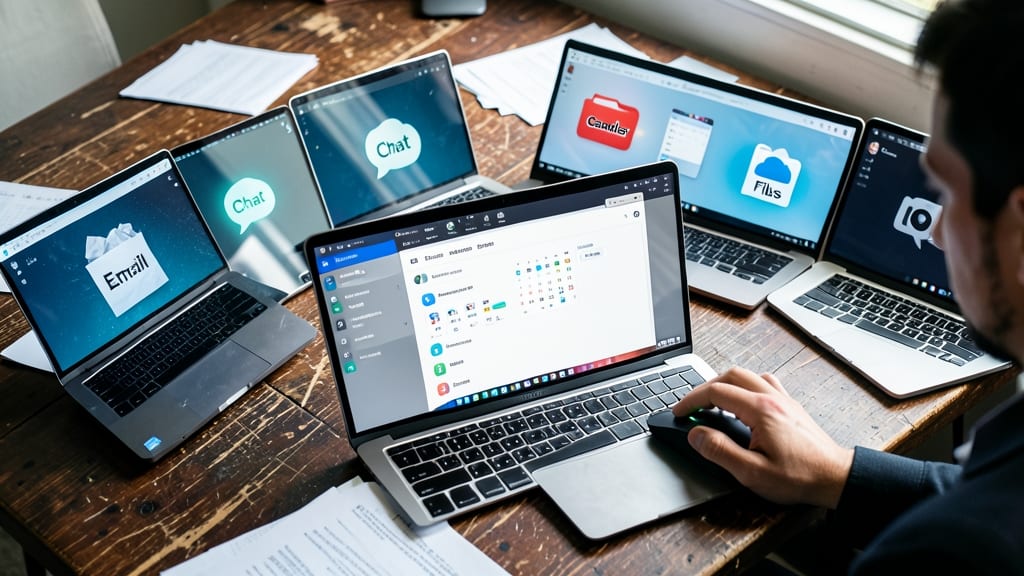
Tired of juggling five different apps just to send announcements, answer questions, and share updates? Microsoft Teams consolidates all classroom communication into one unified platform, replacing scattered emails, text messages, and separate messaging tools with a single, organized space.
Create dedicated channels for announcements, discussions, and feedback—where every student sees updates in real time. The @mentions feature ensures messages get noticed (no more ignored emails), while threaded conversations keep discussions tidy. With file-sharing integration, you can attach lesson plans, worksheets, or video explanations directly in chats, so students always have what they need without digging through attachments.
This is ideal for teachers who want to cut down on back-and-forth emails and keep parents, students, and colleagues aligned—all while reducing your own inbox clutter. Say hello to effortless classroom coordination! ⚡
Built-in classroom management tools
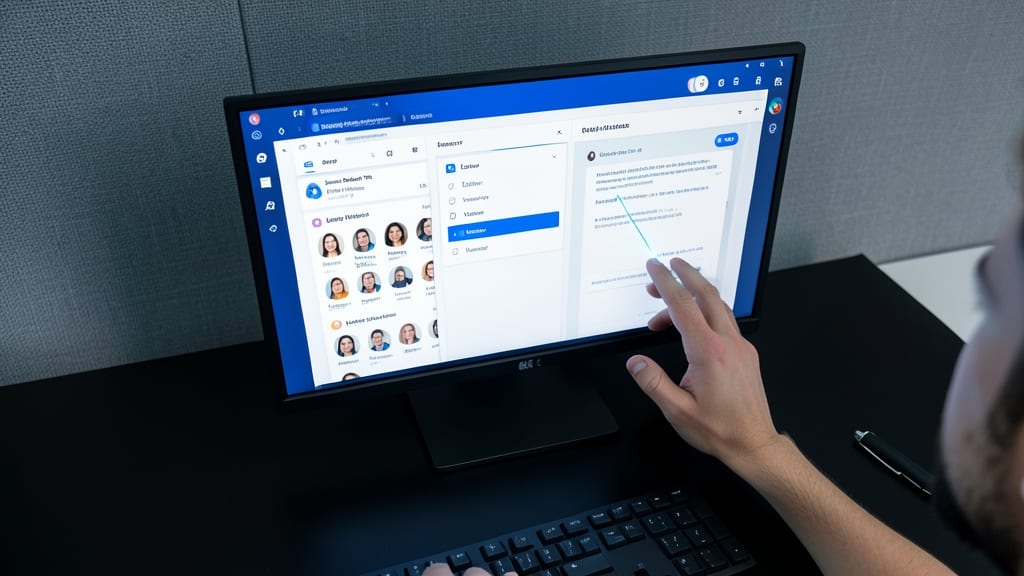
Struggling to keep track of student groups, permissions, and collaboration roles across different learning environments? Microsoft Teams’ built-in classroom management tools let you create private student teams with granular role assignments—like "Editor" for group leaders or "Viewer" for observers—all within seconds.
With customizable permissions, you control who can post, edit, or join channels, ensuring sensitive discussions stay secure. The class roster integration syncs with your school’s student data system, so you never manually update group memberships. For hybrid classrooms, assign specific roles (e.g., "Tech Support" or "Note-Taker") to leverage student strengths while keeping workflows organized.
This is perfect for teachers managing project-based learning, flipped classrooms, or blended environments where flexibility and structure go hand in hand. 💪
Integration with Microsoft Office 365
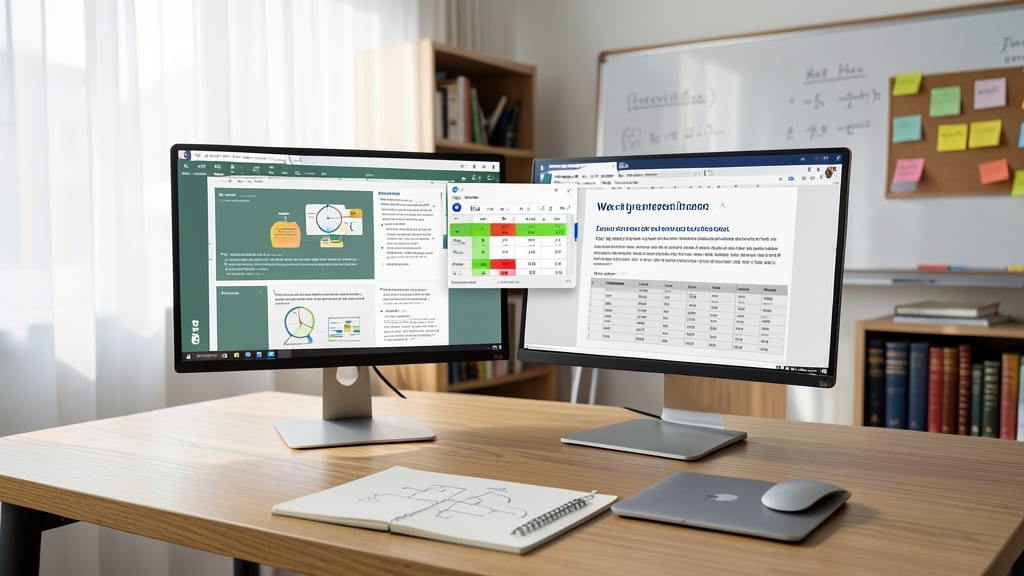
Tired of bouncing between PowerPoint, Word, and Excel just to update your lesson plans and assignments? Microsoft Teams seamlessly integrates with Office 365, letting you embed PowerPoint lessons, Word assignments, and Excel gradebooks directly into your classroom channels—no app-switching required.
With real-time co-authoring in Word and PowerPoint, students can collaborate on projects while you track progress in the same space. The Excel integration even syncs gradebooks, so you can update scores and share feedback without leaving Teams. Plus, OneDrive file storage keeps all materials organized and accessible from anywhere.
This is a game-changer for teachers who rely on Microsoft 365 tools—whether grading papers, delivering lectures, or managing group projects. Say goodbye to scattered files and hello to a unified, efficient workflow. ✨
Live classroom sessions with screen sharing

Turn every lesson into an interactive experience with Microsoft Teams’ live classroom sessions, where screen sharing and whiteboard tools bring lessons to life—whether you're teaching in-person or remotely.
With one-click screen sharing, you can display PowerPoint presentations, coding projects, or design work while students follow along in real time. The built-in whiteboard tool lets you sketch diagrams, annotate documents, or brainstorm ideas collaboratively, all without needing extra software. Plus, breakout rooms let you split students into smaller groups for discussions or peer teaching—perfect for language labs or group projects.
This feature shines brightest for educators teaching hybrid or fully remote classes, but even in-person teachers can use it to flip classrooms or record lessons for absent students. 💻
Student engagement through polls and quizzes
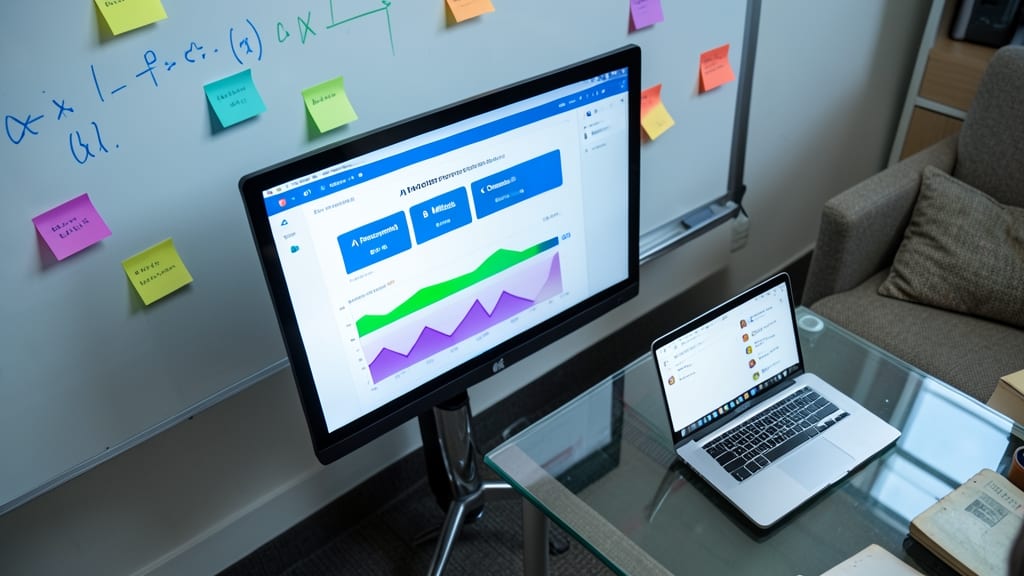
Turn passive listening into active participation with Microsoft Teams’ built-in polls and quizzes—tools that let you check for understanding in seconds without pausing your lesson. Whether you’re reviewing vocabulary, testing math concepts, or gauging reactions to a discussion, these features transform one-way lectures into dynamic exchanges.
Create live polls with real-time results or assign graded quizzes that auto-save to your gradebook. The Formative-style integration supports multiple-choice, true/false, and even open-ended responses, while anonymous submissions encourage honest feedback. You can even export results to Excel or PowerPoint for deeper analysis or class discussions.
Perfect for hybrid classrooms or large groups where raising hands isn’t practical, these tools help you spot misconceptions instantly and adjust your teaching on the fly. ⚡
OneDrive file sharing for assignments
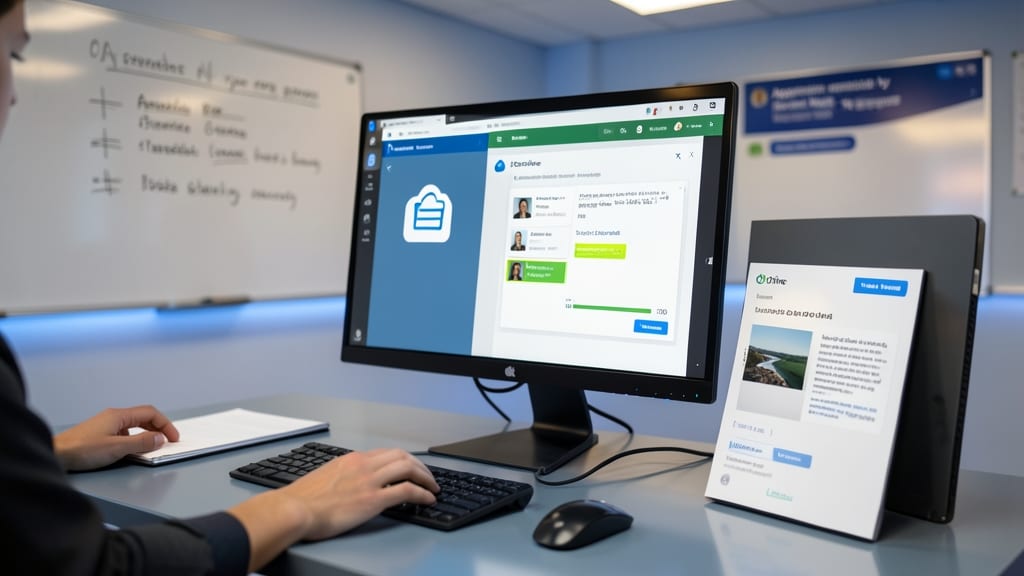
Tired of chasing down missing assignments or sifting through outdated files? OneDrive integration in Teams turns assignment workflows into a fully automated, version-controlled system—so you always have the latest work without the hassle.
Upload assignments once to a shared class folder, and students submit directly through Teams. The system tracks version history, so you can see every edit and revert to earlier drafts if needed. Deadlines are enforced automatically, and notifications keep everyone on track—no more "I forgot to submit" excuses. Plus, files sync across devices, so students access their work from school laptops or home tablets.
This is a game-changer for teachers grading research papers, creative projects, or group collaborations. It’s also perfect for hybrid classrooms where students switch between in-person and remote learning. ⚡
Parent-teacher communication bridge

Endless phone tag and missed voicemails? Microsoft Teams’ Parent-Teacher Communication Bridge solves that with dedicated channels where you can share updates, meeting links, and progress reports in one secure place. No more juggling emails or text chains—just a clean, organized space for transparency.
Create a private parent channel within your class team to post announcements, embed OneNote progress reports, or schedule Teams meetings with one-click links. The file-sharing integration lets you attach grades, rubrics, or even video updates, while @mentions ensure parents see what matters most. Teachers report spending 30% less time on parent emails after switching to this system.
Perfect for educators who want to reduce miscommunication and build stronger home-school connections—without adding to your workload. ✨
Collaborative class notebooks for group work
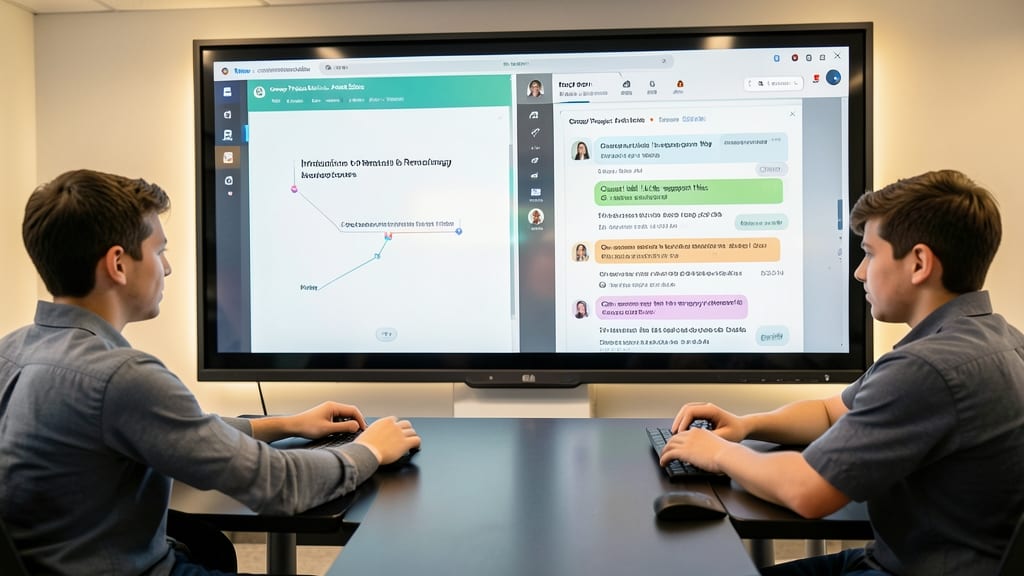
Group projects just got smarter with Teams' collaborative class notebooks, where students can edit the same document in real-time—no more emailing drafts or losing track of changes. This feature turns group work into a seamless, interactive experience, whether students are in the same room or learning remotely.
Using Microsoft Word or OneNote integration, teachers can create shared documents where multiple students contribute simultaneously, with version history tracking every edit. The commenting tools let students discuss ideas directly in the document, while teacher-approved changes ensure assignments stay on track. No special training is needed—students use familiar tools they already know.
Perfect for science projects, literature analyses, or history research, this tool builds collaboration skills while keeping assignments organized. Students with different schedules can contribute at their own pace, making group work more inclusive. ✨
Recording and replaying lessons
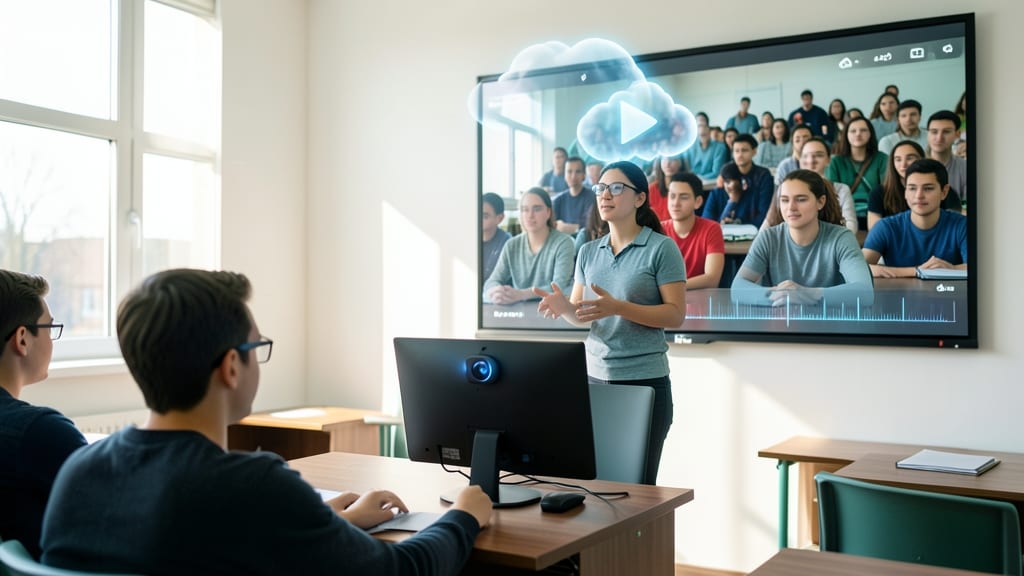
Never let a student miss a lesson again—Microsoft Teams automatically records every live session, storing them in the cloud for replay. With just a few clicks, you can share recordings with absent students or review your own delivery to refine teaching techniques.
The recordings include high-quality video and audio, plus the ability to jump to specific timestamps for targeted review. Students can pause, rewind, or take notes directly in the app, while teachers gain valuable insights into their presentation style. The 10GB storage limit per team ensures you won’t run out of space for important lessons.
This feature is a game-changer for hybrid classrooms or when students are sick—no need to recreate content. Perfect for educators who want to maximize learning opportunities while improving their own instruction. ✨
Security and privacy controls
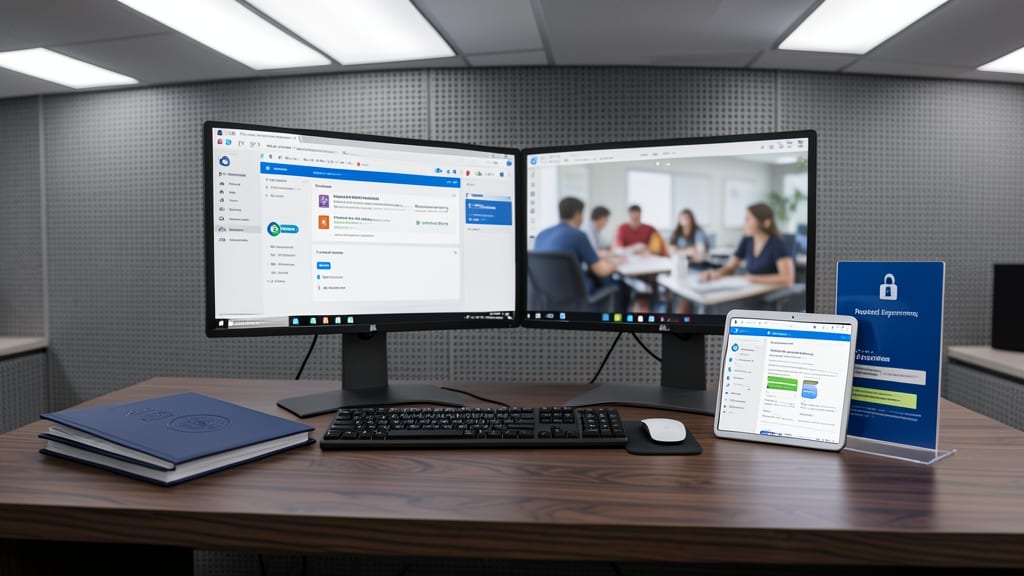
Worried about protecting sensitive student data while meeting strict education regulations? Microsoft Teams gives school administrators granular control over security settings, ensuring compliance with FERPA and COPPA without sacrificing functionality.
With role-based access controls, admins can restrict data sharing to authorized personnel only. The platform also offers end-to-end encryption for messages and files, while audit logs track all activity—critical for accountability. Customizable privacy policies let schools block external sharing or require two-factor authentication for sensitive channels.
This level of protection is ideal for districts handling special education records or conducting online assessments, giving teachers peace of mind while maintaining an open learning environment. ✨