
Software
Microsoft Teams isn’t just for businesses—it’s a game-changer for students. From seamless group projects to 24/7 access to course materials, this platform transforms how you learn, collaborate, and stay organized. Discover 10 game-changing benefits that make Teams the ultimate tool for academic success.
Seamless classroom communication hub

Drowning in a flood of group chat messages, missed emails, and scattered assignments? Microsoft Teams turns the chaos into a single, organized classroom hub where every announcement, discussion, and assignment lives in one place.
Create dedicated channels for each class—one for lectures, another for group projects, and a third for quick Q&A—so you never miss a thread again. The pinned announcements feature ensures deadlines and important updates stay visible, while searchable chat history lets you revisit past discussions without digging through old emails. With @mentions and threaded replies, professors and classmates can tag you directly, cutting through the noise.
Perfect for students juggling multiple classes, this feature keeps everyone on the same page—whether you're in a hybrid course or collaborating with peers across time zones. Say goodbye to email clutter and hello to streamlined communication. ✨
Real-time group project collaboration
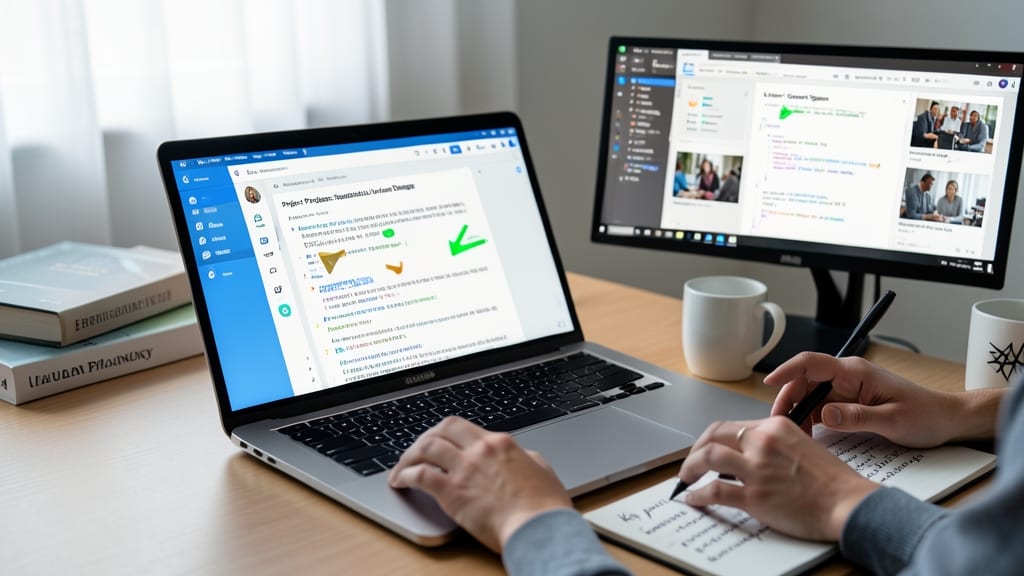
Forget the frustration of emailing drafts back and forth—Microsoft Teams lets you and your classmates edit documents simultaneously in real time. Whether you're writing a group paper, designing a presentation, or debugging code, the co-authoring feature ensures everyone stays on the same page (literally).
With live cursors showing where teammates are working and version history to track changes, conflicts disappear. Need to leave feedback? Add comments directly in the file without breaking the workflow. The integration with Office 365 apps means you can switch between Word, PowerPoint, or Excel—all within Teams—while keeping everything synced.
This is a game-changer for computer science students collaborating on projects or humanities students working on research papers. No more "finalfinalv3.docx" chaos—just smooth, conflict-free teamwork. ✨
Built-in file sharing and storage
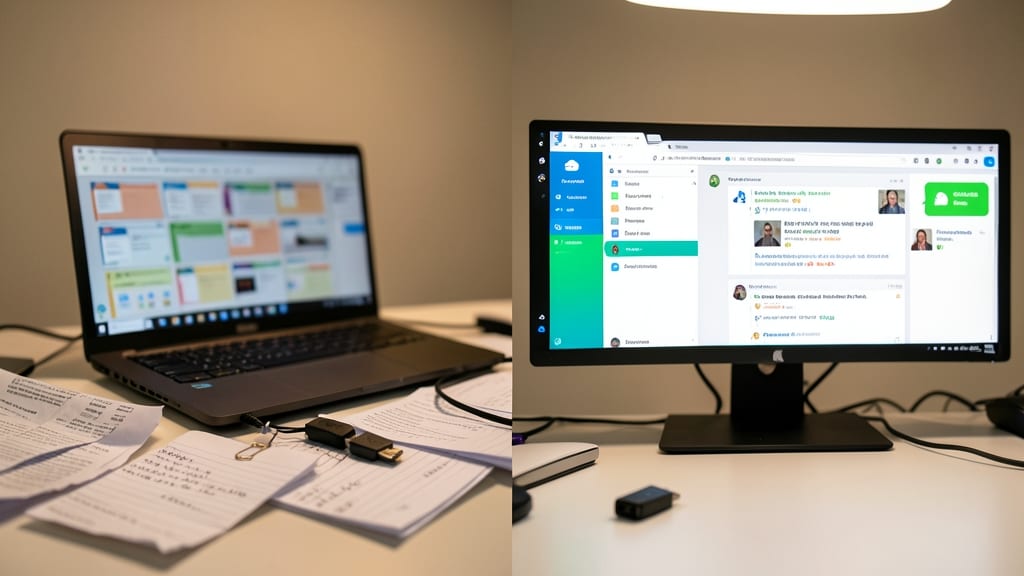
Tired of digging through email chains or hunting for that one USB drive with your latest assignment? Microsoft Teams eliminates the chaos with built-in file sharing and storage—all seamlessly integrated with OneDrive. Every course material, handout, and submission lives in one organized space, accessible from any device.
With 10GB of free cloud storage (expanding to 1TB with Office 365 Education), you’ll never run out of space for lecture notes, research papers, or group project files. The version history feature automatically saves backups, so you can restore earlier drafts if needed. Plus, files sync across your laptop, tablet, and phone—meaning your work follows you everywhere, even offline.
This is perfect for students juggling multiple classes or international group projects where file sharing used to be a nightmare. Say goodbye to "I sent it to the wrong email" headaches—Teams keeps everything in one place, secure and searchable. ✨
Virtual study groups with screen sharing

Stuck trying to explain a tricky math concept or debug a coding problem? Microsoft Teams’ screen sharing feature turns virtual study sessions into interactive whiteboards—no whiteboard required. With just a click, you can display your notes, presentations, or even your IDE to classmates, making complex topics crystal clear.
The tool supports real-time annotations, so everyone can highlight key points or sketch diagrams together. For STEM students, sharing a Python script or circuit diagram becomes seamless, while humanities students can annotate research papers side-by-side. The 4K@30fps quality ensures sharp visuals, even when sharing dense slides or spreadsheets.
Perfect for hybrid learners or international groups, this feature eliminates the frustration of "I don’t see what you’re talking about." Whether you’re tutoring peers or brainstorming group projects, Teams makes collaboration feel like you’re all in the same room. ✨
Integration with Office 365 tools

Tired of bouncing between Word, Excel, and PowerPoint just to finish that group project? Microsoft Teams seamlessly embeds Office 365 apps directly into chats and channels, so you can create, edit, and present—all in one place. No more tab-switching chaos or losing track of your work across different apps.
With real-time co-authoring in Word and Excel, your team can edit spreadsheets or research papers simultaneously while discussing changes in the chat. Need to present your findings? Launch PowerPoint right inside Teams and share your slides with a single click—no need to upload files or switch platforms. The integration even includes version history and commenting tools, so feedback stays organized and tied to the project.
Perfect for students juggling group projects, presentations, or data analysis—this feature turns Teams into your all-in-one productivity hub. ✨
Task and assignment management
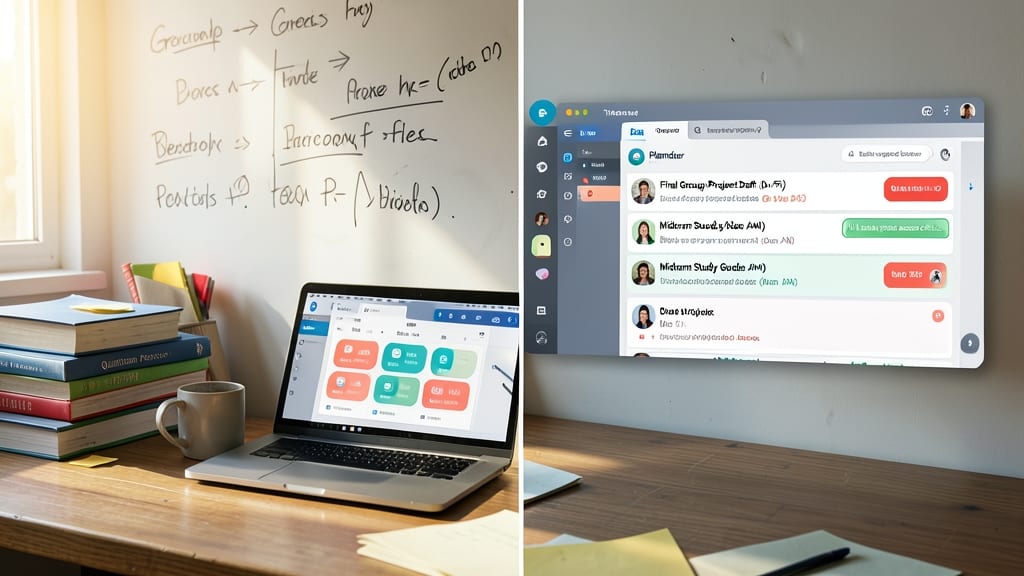
Juggling five classes, group projects, and exams can feel like herding digital cats—but Microsoft Teams’ built-in task manager turns chaos into clarity. The Planner integration lets you create to-do lists, assign tasks to teammates, and set deadlines with just a few clicks, all synced across your devices.
With customizable reminders and color-coded progress bars, you’ll never miss a submission again. The @mentions feature ensures your professors or group members stay on track, too—no more silent radio when deadlines loom. Best of all, it syncs with your Outlook calendar so you’re always aligned with class schedules. ⚡
Accessibility features for all learners
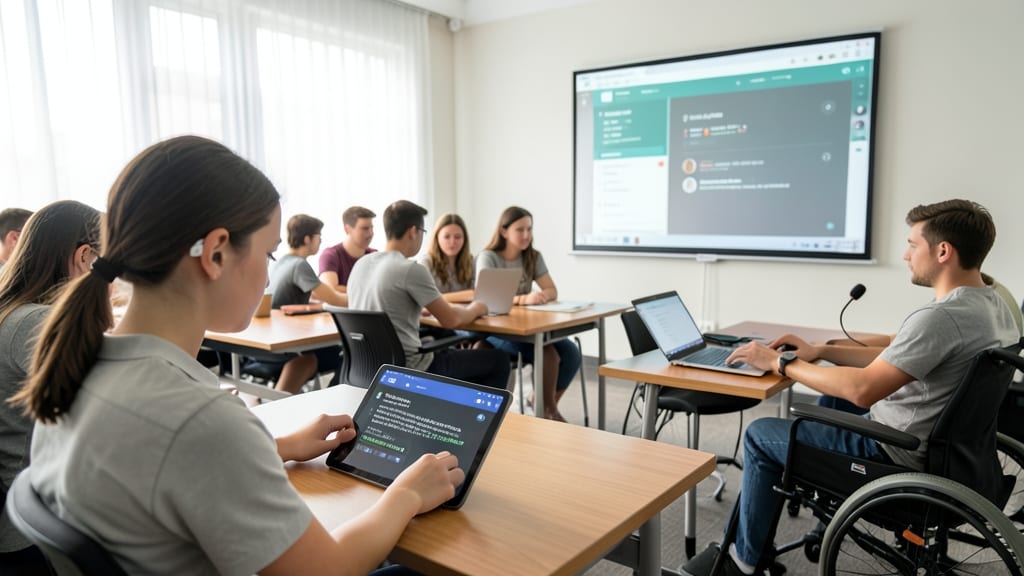
Every student deserves to fully engage in class—whether that means hearing lectures clearly, reading content comfortably, or participating in discussions without barriers. Microsoft Teams removes those barriers with built-in accessibility tools designed to adapt to individual needs, ensuring no one gets left behind.
Enable live captions during video calls to follow along with spoken content in real-time, or use text-to-speech to convert written materials into audio—perfect for visual learners or those with reading challenges. For students using screen readers, Teams supports JAWS and NVDA compatibility, while high-contrast themes and keyboard navigation make the interface easier to use. These features aren’t just add-ons; they’re integrated seamlessly into every call, chat, and file.
From international students tuning in from abroad to peers with sensory or motor impairments, these tools create an inclusive learning environment where everyone contributes equally. No extra apps or workarounds needed—just built-in support that works out of the box. ✨
24/7 Access to course resources
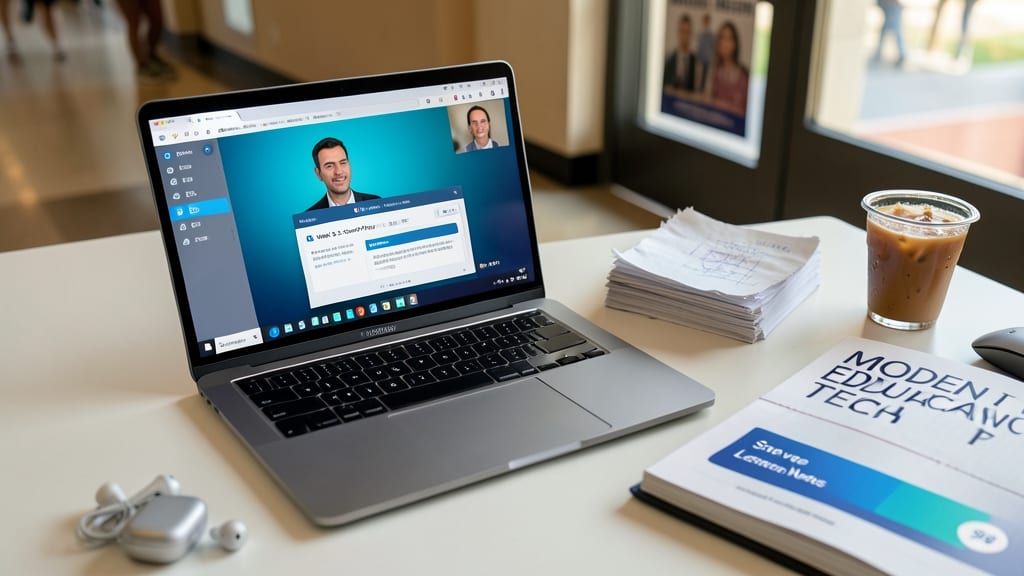
Ever missed a lecture because of a scheduling conflict or rushed to class just to scribble down notes? Microsoft Teams solves that with one-click downloads of lectures, recordings, and course materials—so you can study anytime, anywhere.
With Teams for Education, professors can upload entire lecture series, PDFs, and even video recordings to a dedicated class channel. You can save these files directly to your device or OneDrive, ensuring you never lose access. Need to review a complex topic at 2 AM? No problem—your study materials are always just a tap away. The platform also supports offline access, so you can download content for travel or areas with spotty internet.
This feature is a lifesaver for night owls, part-time workers, or students in different time zones. Whether you're cramming for finals or catching up on missed lectures, Teams keeps your coursework within reach—no last-minute scrambling required. ✨
Secure and private student discussions
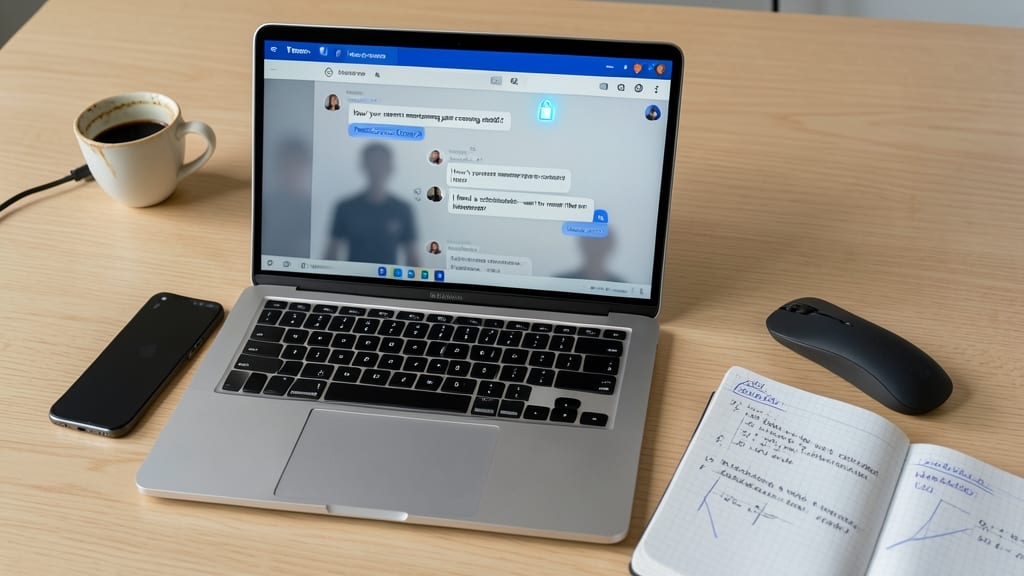
Need to discuss sensitive topics—like mental health, financial aid, or complex coursework—without sharing personal phone numbers or emails? Microsoft Teams’ private chat and group features keep conversations secure while keeping your contact info off the table.
Create end-to-end encrypted study groups or one-on-one chats with professors, where messages stay visible only to invited members. The private channels feature lets you organize sensitive discussions separately from public class chats, while screen-sharing in private calls ensures tutoring sessions stay confidential. Plus, Microsoft’s compliance certifications (like FERPA for education) mean your data stays protected.
Perfect for international students, those with privacy concerns, or anyone needing discreet academic support—this is the safest way to collaborate without compromising personal boundaries. ✨
Preparation for future workplace tools
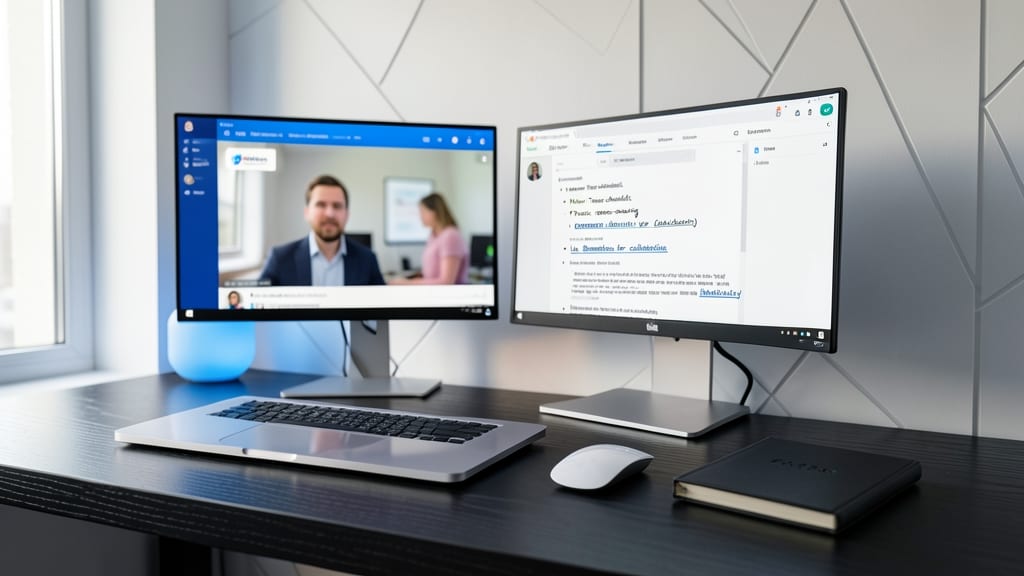
Ever wondered how to stand out in job interviews before you even graduate? Microsoft Teams isn’t just a student tool—it’s the real-world collaboration platform used across industries like tech, marketing, and education. By mastering it now, you’re gaining experience with the same software professionals rely on daily.
Teams integrates with LinkedIn Learning, offering courses that mirror workplace training programs. You’ll also develop skills in virtual meeting management, file sharing protocols, and cross-team communication—all of which translate directly to job readiness. Plus, employers love seeing candidates who can hit the ground running with industry-standard tools.
Whether you’re aiming for a tech startup, a marketing agency, or an education role, Teams proficiency gives you a competitive edge. Start building your skills today—your future self will thank you. ✨