
Operating System
Windows users face growing cyber threats daily, but these 10 proven tactics will fortify your digital defenses. From password protection to advanced system hardening, these strategies keep your data and privacy secure without requiring technical expertise.
Enable Windows BitLocker for full disk encryption
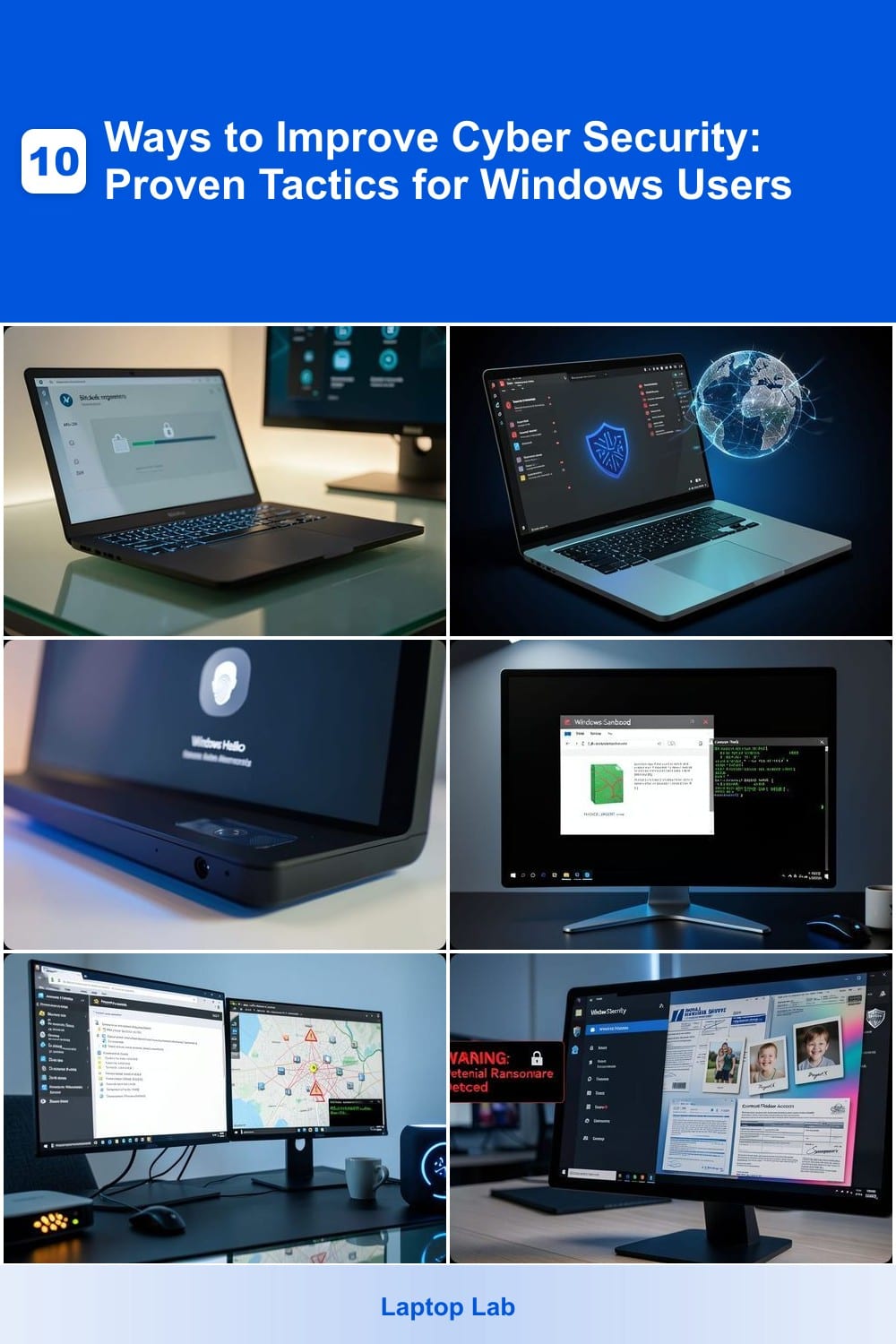
If your laptop contains sensitive client files or financial records, BitLocker is Windows' built-in solution to lock them away with military-grade encryption—even if your device falls into the wrong hands. This AES-256 encryption standard (the same used by governments) ensures all files, folders, and system files remain inaccessible without your recovery key.
Setup is straightforward: navigate to Control Panel > BitLocker Drive Encryption, choose your drive, and select TPM + PIN for two-factor protection. For remote workers, the BitLocker To Go feature extends encryption to USB drives, while pre-boot authentication prevents unauthorized system access. Recovery keys can be stored in Microsoft Account or printed as a backup—critical for professionals who can't risk data breaches.
This is the first line of defense for anyone handling confidential data, especially those working on unsecured networks. Whether you're a consultant, remote employee, or freelancer, BitLocker transforms your device into a digital vault. 💻
Use Microsoft Defender with cloud-delivered protection
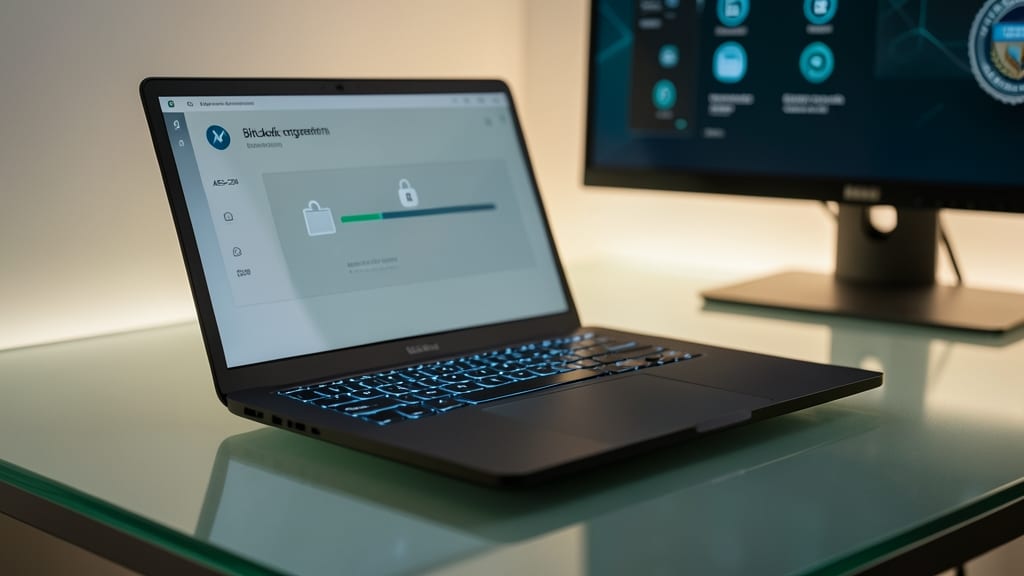
If you’re tired of paying for antivirus software that barely keeps up with new threats, Microsoft Defender with Cloud-Delivered Protection is your game-changer. This free, built-in solution leverages Microsoft’s global threat intelligence to block zero-day exploits and ransomware before they reach your device—no third-party subscription needed.
The Cloud-Delivered Protection feature scans files against Microsoft’s massive database of known malware, phishing sites, and emerging threats in real time. It integrates seamlessly with Windows Security Center, offering automatic updates and behavioral monitoring to flag suspicious activity. Unlike many free antivirus tools, it requires zero configuration—just enable it, and you’re protected against advanced cyberattacks without slowing down your system.
Perfect for home users, freelancers, and small businesses who need enterprise-level security without the cost, this is the ultimate "set and forget" solution for modern cybersecurity. 💻
Implement Windows Hello with biometric authentication
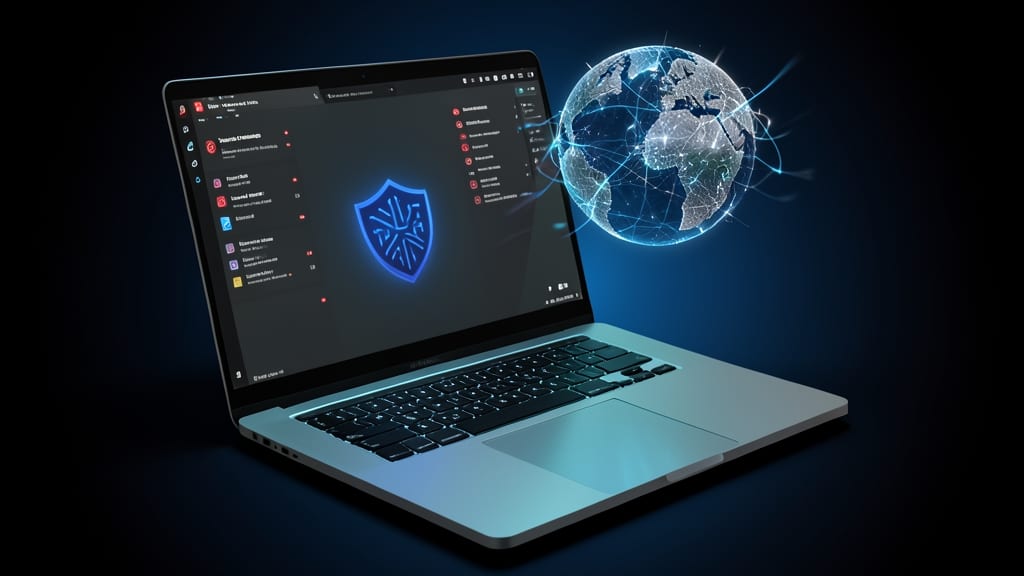
Tired of weak passwords getting stolen or shared on public workstations? Windows Hello replaces them with facial recognition or fingerprint scans, creating a passwordless login that’s faster and far more secure than traditional credentials.
This built-in feature works with IR cameras (for facial recognition) or dedicated fingerprint sensors to authenticate you in under a second. It’s FIDO2-certified, meaning it meets enterprise-grade security standards while being zero-configuration—just set it up once in Windows Settings > Accounts > Sign-in options. The best part? Even if someone steals your device, they can’t bypass this authentication without your biometrics.
Perfect for office environments, libraries, or home labs where multiple users access the same machine. 💻
Enable Windows sandbox for testing suspicious files
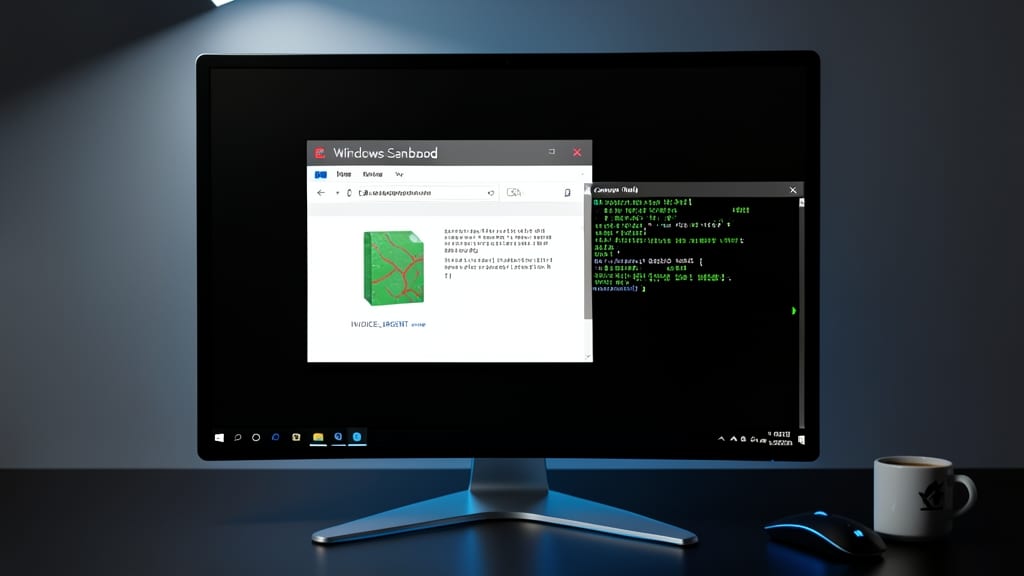
Curious about that sketchy email attachment or malware sample you found online? Windows Sandbox lets you open and test suspicious files in a completely isolated virtual environment—no risk to your real system. This lightweight VM resets instantly when closed, making it perfect for security researchers or anyone who wants to investigate threats hands-on.
With 1GB RAM allocation by default (adjustable up to 4GB), it runs fast enough for basic tasks while keeping your host system untouched. The zero-configuration setup means you can spin it up in seconds, and it even supports copying files directly from your main system. Plus, it’s built into Windows 10 Pro and later—no extra software needed.
Security researchers and IT pros will love this for malware analysis, but even casual users can safely test suspicious downloads. Just remember: anything you do inside stays inside. ✨
Configure Windows firewall with advanced rules
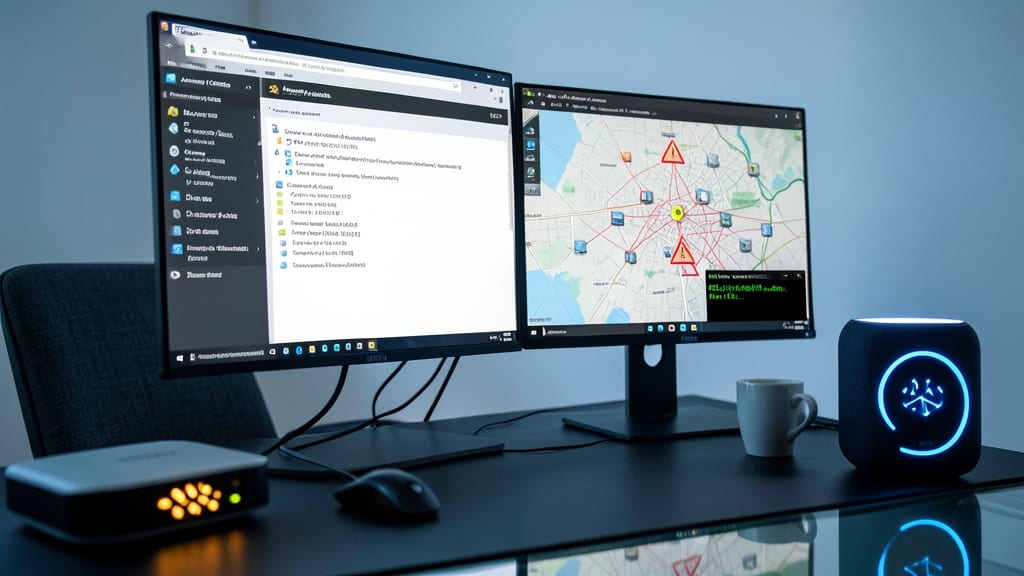
Public Wi-Fi and smart home devices turn your network into a high-risk zone—but Windows Firewall’s Advanced Rules let you lock down threats without sacrificing functionality. Unlike basic firewall settings, this feature lets you define custom inbound/outbound rules for specific apps, ports, or IP ranges, giving you precision control over what’s allowed.
You can block port 445 (used in WannaCry attacks) while keeping RDP or game traffic flowing, or restrict IoT devices to only communicate with your router. The Domain, Private, and Public profiles let you adjust rules automatically based on your network type, and predefined templates (like "Block an app or feature") speed up setup. For power users, group policy integration lets you enforce rules across entire networks.
This is your go-to for travelers on hotel Wi-Fi, smart home owners, or anyone tired of guessing which apps should have internet access. 💻
Enable Controlled folder access in ransomware protection
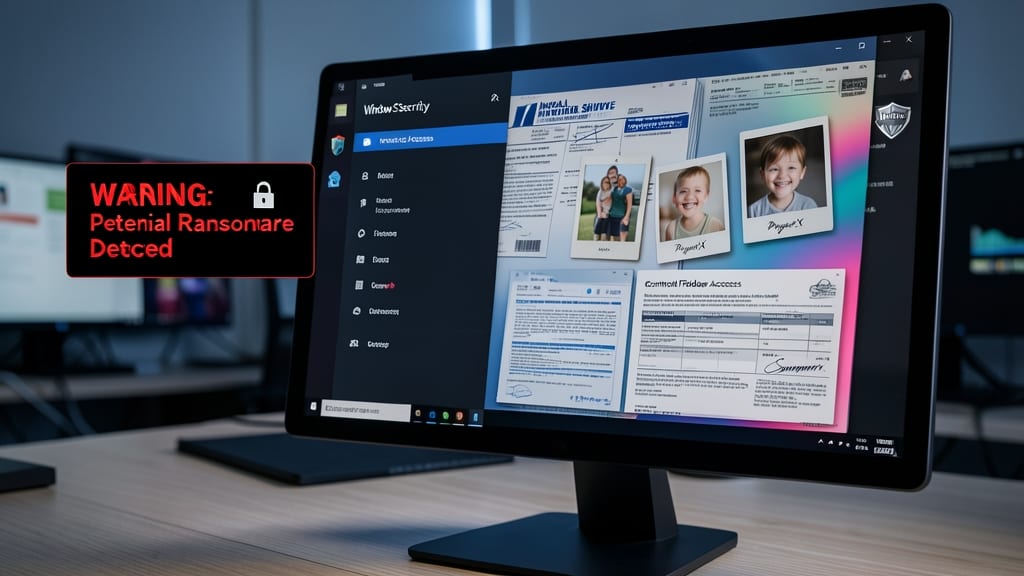
Your tax documents, family photos, and creative projects are prime targets for ransomware—but Controlled Folder Access in Windows Security can stop attacks before they lock your files away. This built-in feature blocks unauthorized encryption attempts by suspicious processes, acting as a silent guardian for your most critical folders.
To enable it, navigate to Windows Security > Virus & threat protection > Ransomware protection, then toggle Controlled folder access. You can then specify default folders like Documents, Pictures, and Desktop for protection. The feature works alongside Microsoft Defender to create a double-layer defense, stopping even zero-day ransomware variants that slip past traditional scans. Best of all, it’s zero-config for most users—just turn it on and forget it.
This is the perfect solution for home users who store sensitive files in default locations but don’t want to deal with complex security tools. It’s lightweight, free, and runs quietly in the background—no performance hit, just peace of mind. 💪
Use Windows update rings for priority security patches
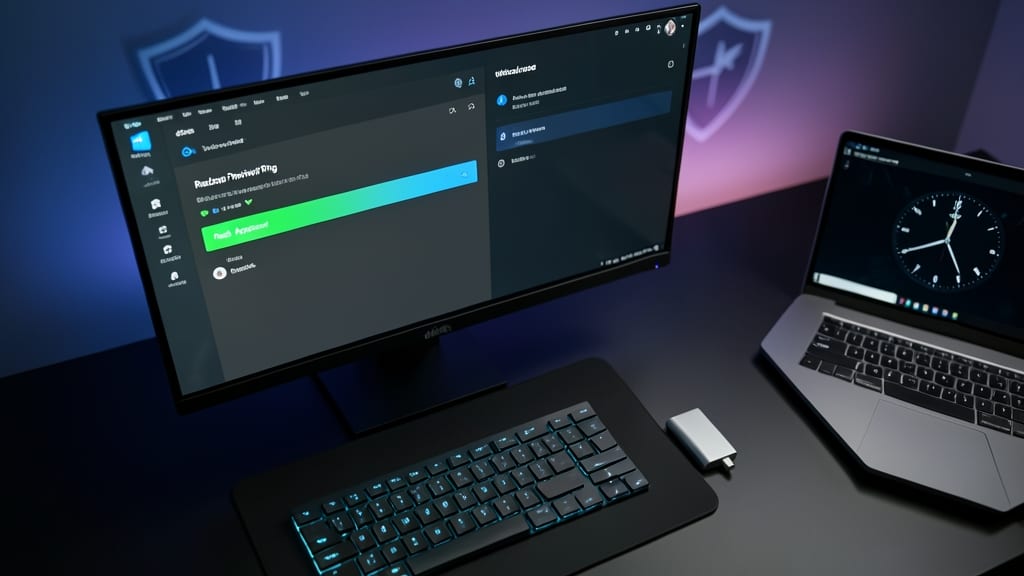
Windows Update Rings aren’t just about getting new features first—they’re your secret weapon against newly discovered threats. By joining the Release Preview Ring or Windows Insider Program, you gain access to critical security patches weeks before they hit the general public, closing vulnerabilities faster than most organizations can react.
The Release Preview Ring delivers updates to the broader Windows Insider community, while the Beta Channel offers even earlier access for IT professionals. These rings include mandatory security updates that bypass standard release schedules, ensuring your system stays protected against exploits like Log4j or PrintNightmare before they become widespread threats. Microsoft even provides detailed patch notes so you can prioritize fixes based on risk.
This is a game-changer for IT admins managing fleets or security-conscious users who can’t afford to wait for monthly patches. Just be sure to test updates in a non-production environment first—though the stability of these rings has improved dramatically in recent years. 💪
Disable SMBv1 to block EternalBlue exploits
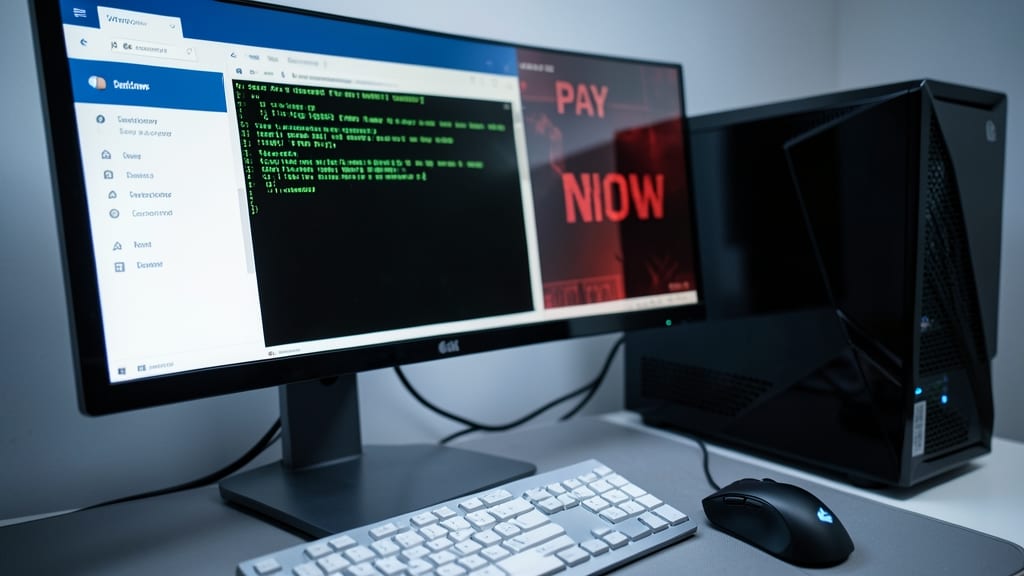
The WannaCry ransomware outbreak in 2017 exploited a single vulnerability: SMBv1, an outdated file-sharing protocol still enabled on millions of Windows systems. Disabling it shuts down this attack vector entirely—no antivirus or firewall can match this level of protection.
To disable it, open Windows Features, uncheck SMB 1.0/CIFS File Sharing, and restart. This removes the protocol system-wide, blocking exploits like EternalBlue that spread through unpatched networks. Even modern Windows versions (10/11) retain SMBv1 by default if legacy devices connect, making this a zero-cost, high-impact fix.
IT admins managing mixed environments or small businesses with older Windows machines must prioritize this—it’s the digital equivalent of removing a front-door key you’ve lost. ⚡
Enable virtualization-based security for kernel isolation

When malware slips past your antivirus, Virtualization-Based Security (VBS) acts as a last line of defense by isolating the Windows kernel in a hardware-enforced sandbox. Unlike software-based protections, VBS leverages your CPU's virtualization extensions to create a secure execution environment that even rootkits can't bypass.
Enabling VBS in Windows 11 requires a 64-bit processor with SLAT support (Intel VT-x or AMD-V) and a compatible OS. Once enabled, it prevents unauthorized code from executing in kernel mode, stopping attacks like Pass-the-Hash or Direct Kernel Object Manipulation (DKOM) before they escalate. Microsoft recommends this for systems handling classified data or running sensitive applications like virtual machines.
This isn't just for IT admins—power users dealing with malware analysis or high-value targets (like journalists or activists) will find VBS critical. The tradeoff? A minor performance hit (~5-10% in synthetic benchmarks) for near-absolute kernel integrity. ✨
Use Windows Credential Manager for secure password storage
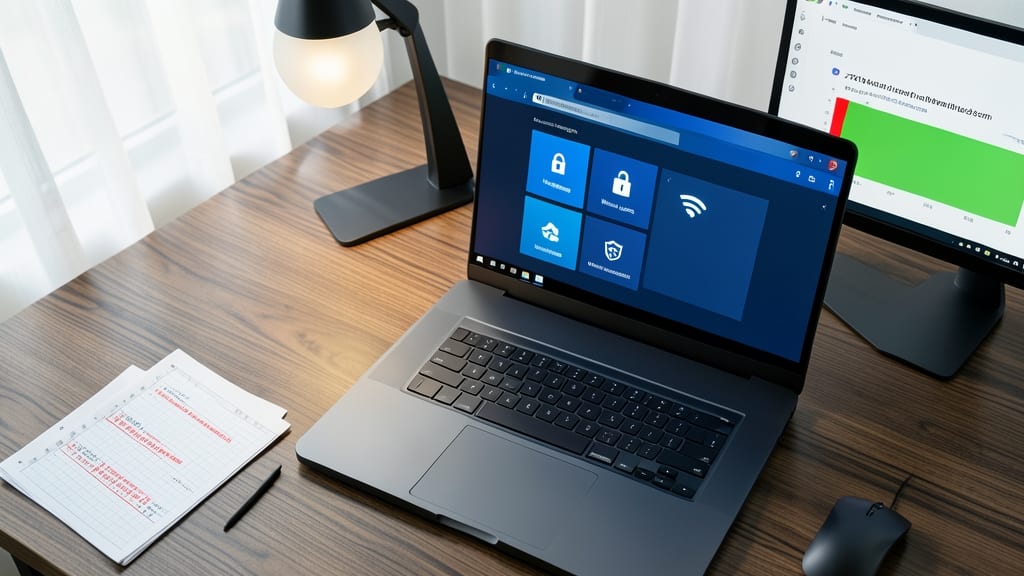
Tired of juggling a spreadsheet of passwords or reusing the same weak password across accounts? Windows Credential Manager acts as your built-in digital vault, securely storing website logins, Wi-Fi passwords, and even Windows credentials—all encrypted and ready to auto-fill when needed.
This free tool syncs across devices (with a Microsoft account) and supports Windows Hello for biometric unlocking. It’s especially useful for users with multiple accounts—like separating work emails from personal banking—while eliminating the risk of password reuse. Just type "Credential Manager" in the Start menu to get started.
Perfect for students, remote workers, or anyone managing complex logins, it’s the simplest way to keep credentials organized without third-party tools. ✨